What to take into the demo
- Camera recognition suggests a card identity; a shop barcode retrieves an existing record.
- Staff still confirm the exact printing, finish, language, condition and quantity.
- Keep photo centering, authentication, pricing and inventory receipt as separate decisions.
Start with the job you want scanning to do
Card scanning can help a trading card shop identify a likely catalog entry or retrieve an existing stock record. It cannot, by itself, establish everything the shop needs to buy, price or sell that physical card. Treat a camera result as a candidate for review, then confirm the exact printing, finish, language, condition and quantity before using it in a transaction.
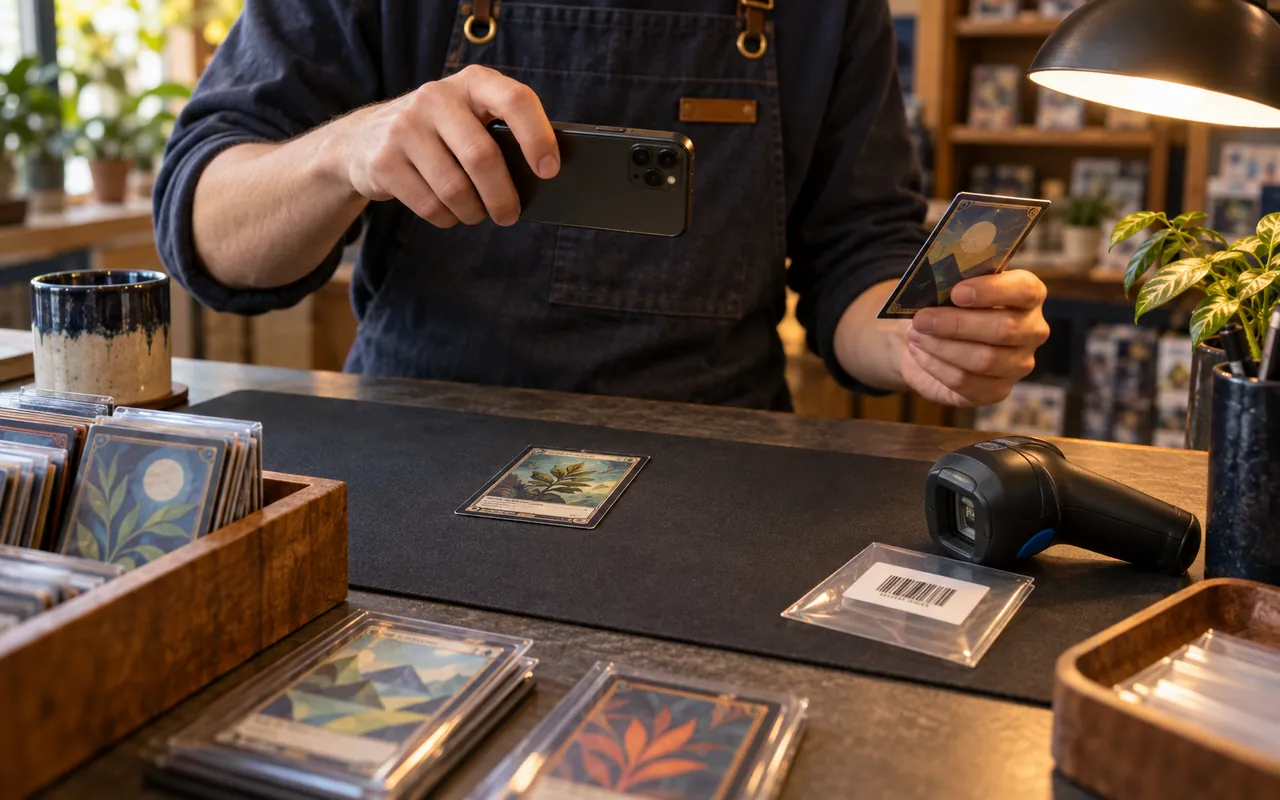
The word scanner often describes three different tools. A camera recognizer looks at the card image. A barcode reader enters a code from a product or shop label. A photo centering tool measures borders after the user aligns an image. Decide which problem is slowing your team down before comparing these tools; a faster label lookup will not identify an unlabeled collection.
A useful demonstration follows one card through the whole task. Start with the physical item, show the proposed match, make a correction, and find the confirmed record afterward. Include a card that needs manual identification. That exercise reveals whether scanning fits your counter routine, including the moments when a suggestion needs another look.
| Tool or task | Useful output | Staff still need to confirm |
|---|---|---|
| Camera recognition | A likely catalog candidate | Exact printing, language, finish and physical item |
| Shop barcode lookup | The record mapped to that label | Label placement, condition, quantity and current availability |
| Photo centering overlay | Border proportions from aligned photographs | Both sides, accurate alignment and separate condition observations |
| Inventory receipt | A confirmed stock movement | Ownership, quantity, location, costs and the completed result |
Sources: CardCounter Help: Identify cards with the scanner; CardCounter: Point of sale for card shops; CardCounter Help: Measure photo centering with an overlay
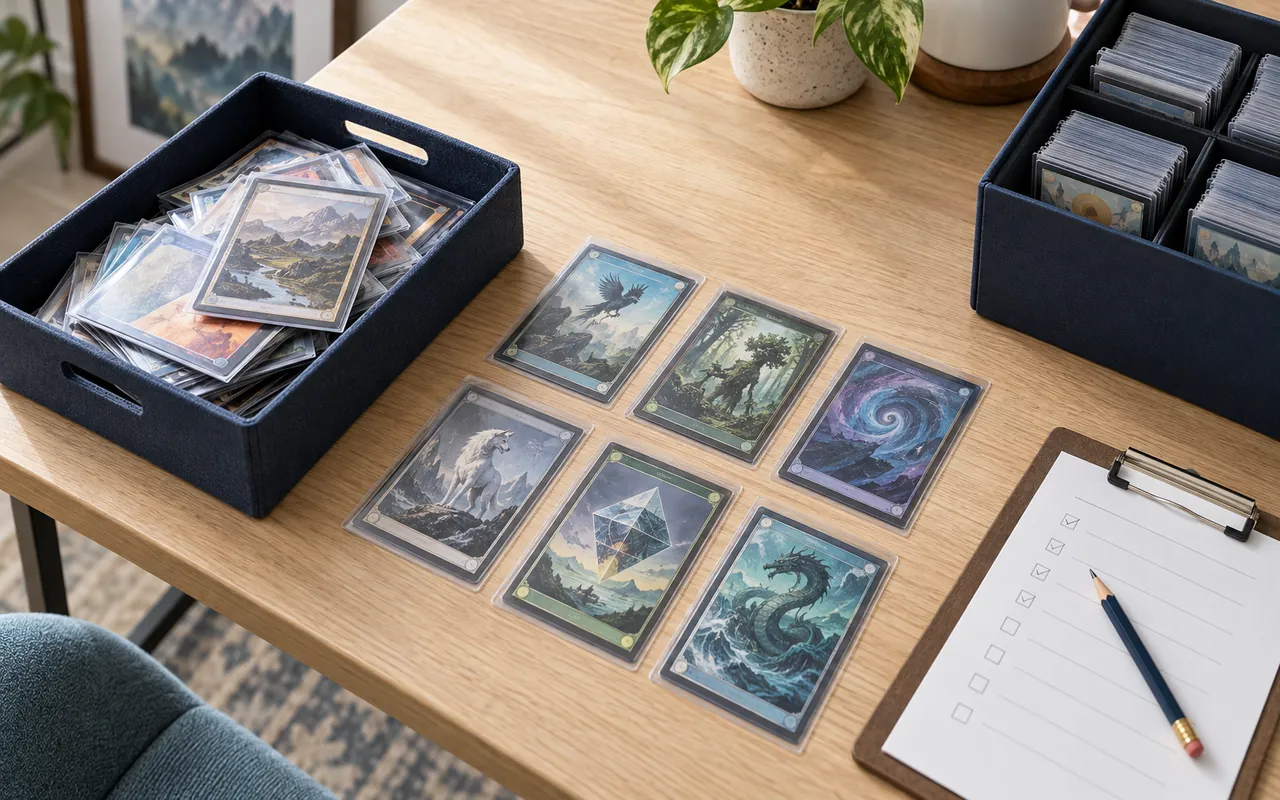
A familiar picture does not settle the printing
Card art is a useful search clue, but similar artwork can appear on different printings. TCGplayer explicitly advises checking the version when artwork is reused across sets, and its scanning instructions call for reviewing set and quantity as well as relevant card settings. This is a reason to keep a deliberate identity check in your workflow, rather than treating a familiar picture as a completed match.
Make the check concrete. Read the collector number on the physical card, compare the set details, and inspect the finish under suitable light. Confirm language and any relevant printing distinction before attaching a price. If a customer brings two visually similar copies, keep them physically separate until you know whether they belong to one stock record or two.
A plausible match can be more troublesome than an obvious failure because it invites a quick confirmation. Give staff a clear route to reject a candidate, search manually or set the item aside. Do not hide an unresolved printing question inside a generic condition note. The next person opening that record needs to know which identity is confirmed and which question remains open.
Give capture a repeatable place at the counter
Set up a small capture area with a plain contrasting background, steady lighting and room to see the whole card. CardCounter’s identification help asks for one card, visible corners and reduced glare. Keep an incoming tray and a reviewed tray within reach so that moving a card has a clear meaning. The physical arrangement should make the next step obvious when another employee takes over.
Glare, an obscured number or an awkward sleeve position gives staff something specific to correct. Change the capture before repeating it. Separate a poor image from an access, connection or allowance message; those problems require different responses. Repeatedly photographing the same card without reading the result can consume attention while leaving the actual obstacle untouched.
Choose a way to handle interruptions. If the cashier must pause to serve a customer, leave the card with its unfinished review rather than dropping it into the completed stack. A short written status, a separate tray or the supported saved review can help. The important test is whether the next employee can resume without guessing which physical cards were already accepted.
Keep merchant condition tied to physical inspection
Recognition and condition answer different questions. TCGplayer’s condition guidance considers the type and severity of imperfections, including wear, damage and some manufacturing defects. That is a separate assessment from finding a catalog name. A camera recognition result should not silently promote a card to Near Mint, and a condition selected for a lookup should not be mistaken for an inspection that happened automatically.
Use the shop’s documented condition standard and inspect both sides of the physical card. Check the surfaces, edges and corners in appropriate light, and record uncertainty when the evidence is incomplete. For example, a mark visible only when a card is tilted deserves review even if the straight-on capture looks clean. Staff should be able to explain why the recorded condition fits that particular copy.
Keep an exception process for cards that need another opinion. Separate those items from ordinary ready stock and identify who can resolve them. Do not let a busy queue turn an unanswered authenticity or alteration concern into a routine condition choice. Decide the shop’s acceptance policy before making an offer; a software suggestion does not take responsibility for the physical purchase.
Sources: TCGplayer: Card Conditioning Overview; CardCounter Help: Identify cards with the scanner
Use photo centering for the measurement it actually provides
Photo centering tools can make border review easier to discuss, but the measurement depends on the photographs and the alignment. CardCounter’s documented process uses front and back images, an outer card boundary and an inner printed border. A tilted image, an unclear edge or a guide placed on the sleeve instead of the card can change the proportions being measured.
Retake an unclear image instead of forcing the overlay to produce a satisfying number. Finish both sides and distinguish measured proportions from the observations staff enter about condition. In CardCounter, this is a guided photo estimate with explicit limits. It is not automated detection of every defect, authentication of the card, or a promise that a grading company will assign a particular grade.
Keep any photo estimate with its evidence and explain it in ordinary language. A customer should be able to tell what was measured, which side was missing and what still required physical inspection. Avoid turning a centering comparison into a projected resale price. A possible future slab grade is not established by an overlay, and the shop still needs to make its own buying decision.
Sources: CardCounter Help: Measure photo centering with an overlay; CardCounter Help: Review condition and export a grading report
Finish the receipt before treating a scan as stock
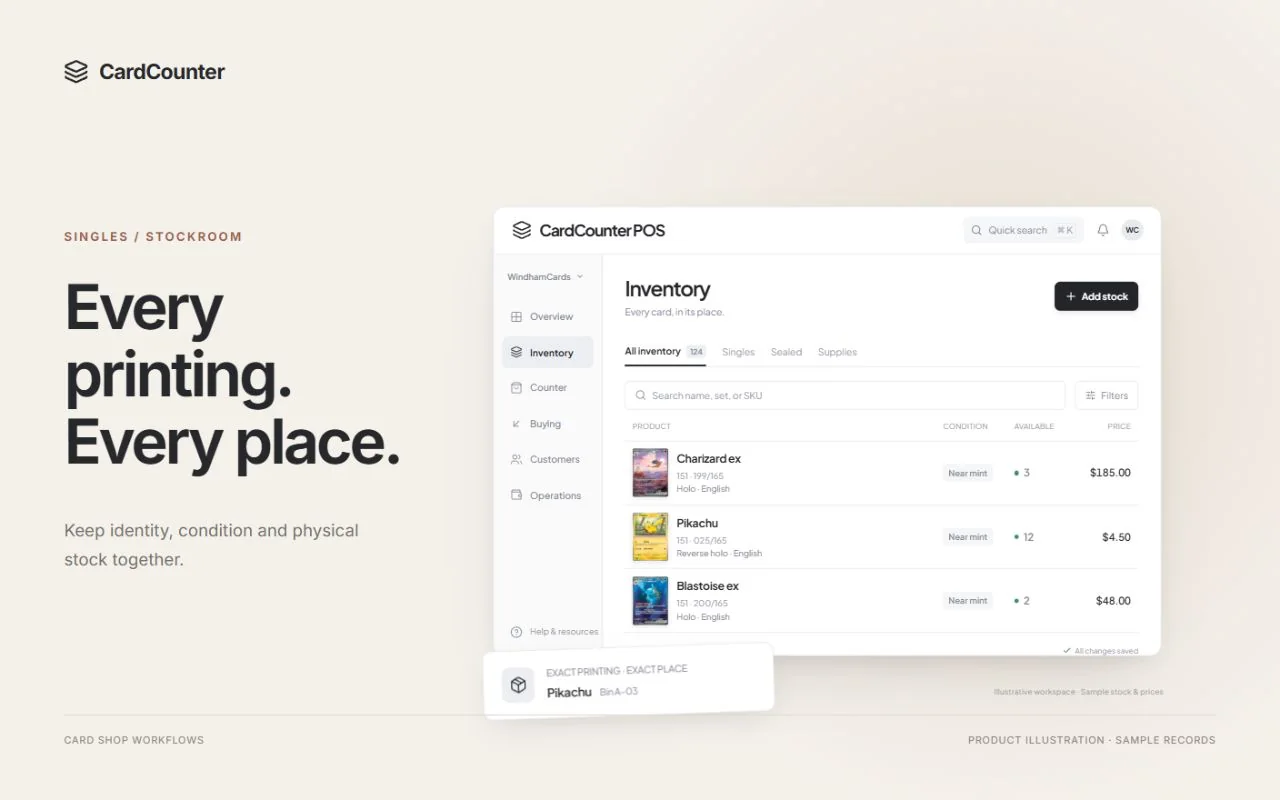
A recognized card is not automatically inventory the shop owns. It might still belong to a customer, be waiting for an offer, or be part of a review that has not been confirmed. CardCounter’s scanning instructions distinguish capture from the supported inventory review and receive workflow. Check the confirmed result of that workflow before putting the item into a sellable location.
Review the intended quantity against a physical count. Three successful captures do not necessarily mean three different copies, and a quantity typed once does not prove that the cards were counted. For a repeated printing, decide when staff should group copies and how they will separate differing conditions. Trace the finished receipt back to the actual stack that entered the shop.
Keep prices, acquisition costs and locations meaningful as well. A price reference is not an accepted customer offer, and neither one is proof of a completed receipt. If a value is missing, leave a visible task for the appropriate person rather than inserting a guess. After confirmation, find the exact item in inventory and verify its quantity and destination before moving on.
Sources: CardCounter Help: Review scans and receive stock; CardCounter: Exact card shop inventory
Evaluate completed records, including the exceptions
Build a small trial batch that reflects your shop rather than a perfect stack chosen only for easy recognition. Include a repeated artwork, different finishes, a card with visible wear, a difficult image and an item outside the proposed recognition coverage. Write down the expected identity and count first. This is a suggested evaluation method, not a claim that we have measured a scanner’s accuracy on your stock.
Track which records were correct after review, which candidates needed correction, which items required manual entry and which receipts remained unfinished. If you time the task, include inspection and corrections. Measuring only the moment a candidate appears leaves out the work that determines whether the result is useful. Keep the physical card count alongside the software count throughout the trial.
Then repeat a realistic interruption: leave one item unresolved, resume the review, and check the final inventory. Confirm what staff should do after an uncertain response before attempting the action again. Your acceptance criteria should describe a correct, traceable result and a workable exception process. A dramatic scanning demonstration is less useful if the team cannot explain how to finish the awkward items.
Know CardCounter’s current recognition and access limits
CardCounter’s current camera recognition scope is English physical Pokémon singles. Scanning and photo grading require active, approved Pro access; the scanner also checks the relevant market connection and allowance. Confirm these requirements for your shop during a walkthrough. This guide does not imply automatic recognition for every trading card game, every language or every type of collectible.
Camera identification and a shop barcode serve different moments. At checkout, CardCounter can search an exact card or read a shop label linked to existing stock. When buying an unlabeled single, staff first need an exact identity and inspection. A label can make later lookup convenient, but it cannot repair a record that was attached to the wrong printing during intake.
Keep a manual path available for unsupported or ambiguous items, and ask how those records continue through your normal shop workflow. Choosing Pro does not establish that every device, account connection or proposed use is ready. Demonstrate the supported capture method on the devices and card mix you intend to use, and agree how staff will handle missing price evidence or inactive access.
Sources: CardCounter Help: Identify cards with the scanner; CardCounter: Point of sale for card shops
Bring a short checklist to the demonstration
Choose the tool by the handoff you need to improve. An intake team may need help narrowing an identity search, while a cashier needs reliable lookup of already-reviewed stock. A person screening photos needs clear measurement limits. Keep those goals separate when comparing options so that an impressive answer to one question does not conceal an unanswered question about another.
Ask the demonstrator to show a correct match, an incorrect suggestion, a manual correction and the finished record. TCGplayer’s own app documentation illustrates why review settings matter: it offers scanner confidence and verification-prompt controls. Those controls are specific to that app, not a description of CardCounter. In any product, establish who verifies the output before it affects an offer or stock count.
To see how this fits CardCounter, book a walkthrough using the action below and bring examples from your usual card mix. Ask to follow one supported single from capture through exact review and inventory receipt, then find it at the counter. Agree the current access, setup and exception process before relying on it in the shop. The goal is a record your team can use and explain.
- State the supported games, languages and physical card types.
- Confirm the exact printing and demonstrate a rejected candidate.
- Show who enters condition, quantity and missing-price decisions.
- Follow the confirmed inventory receipt to the correct stock location.
- Demonstrate a shop-label lookup and a useful manual fallback.
- Explain the limits of photo estimates and the support path for access issues.
Sources: TCGplayer: Choosing Your Settings; CardCounter Help: Identify cards with the scanner; CardCounter Help: Review scans and receive stock
Questions before you choose
Is a card camera scanner the same as a barcode scanner?
No. Camera recognition proposes an identity from an image. A barcode reader retrieves the record mapped to a code or shop label. Staff must still confirm that the physical card belongs to the record being used.
Does scanning a card automatically add sellable inventory?
A capture alone does not create physical stock in CardCounter. Complete exact identity, condition, quantity and inventory review, then check the confirmed receive result before treating the card as available stock.
Can a photo centering tool authenticate a card or guarantee a grade?
No. CardCounter’s overlay provides centering measurements from aligned photographs as part of a guided estimate. It does not authenticate the card, detect every defect or guarantee a professional grade.
Which cards does CardCounter camera recognition support?
The current scope is English physical Pokémon singles with active, approved Pro access. Confirm scanner readiness, market connection, allowance and device setup for your shop. Unsupported or ambiguous items require manual review.
Official sources
Features, packages and availability can change. Use the current provider documentation alongside your own demonstration.
- CardCounter Help: Identify cards with the scanner Checked October 15, 2026
- CardCounter Help: Measure photo centering with an overlay Checked October 15, 2026
- CardCounter Help: Review condition and export a grading report Checked October 15, 2026
- CardCounter Help: Review scans and receive stock Checked October 15, 2026
- CardCounter: Point of sale for card shops Checked October 15, 2026
- CardCounter: Exact card shop inventory Checked October 15, 2026
- TCGplayer: Tips for Accurate Scanning Checked October 15, 2026
- TCGplayer: Choosing Your Settings Checked October 15, 2026
- TCGplayer: Card Conditioning Overview Checked October 15, 2026
Product and company names belong to their respective owners.