Review condition and export a grading report
Record visible wear and export a CardCounter photo estimate with its evidence and limitations.
On this page
Before you begin
Use Photo grading after aligning the front and back photographs.
Owners and managers with scanner access. Included with Growth.
Step by step
- 1
Inspect corners, edges and surface
Choose the observed severity for each category. Tilt the physical card under good light to look for scratches, dents, whitening, stains or creases a flat photo can miss.
- 2
Complete both sides
Not reviewed remains incomplete. Select No visible wear only after inspection; light, moderate and severe damage have different estimated ranges.
- 3
Read the condition review
Check the CardCounter estimate, centering comparisons and limiting observations. Follow the linked PSA, CGC, Beckett and Ace guidance for the scope of each comparison.
- 4
Add useful notes and export
Use the supported report export to retain alignment measurements, manual observations, source links and limitations. Keep the report tied to the card actually inspected.
On the screen
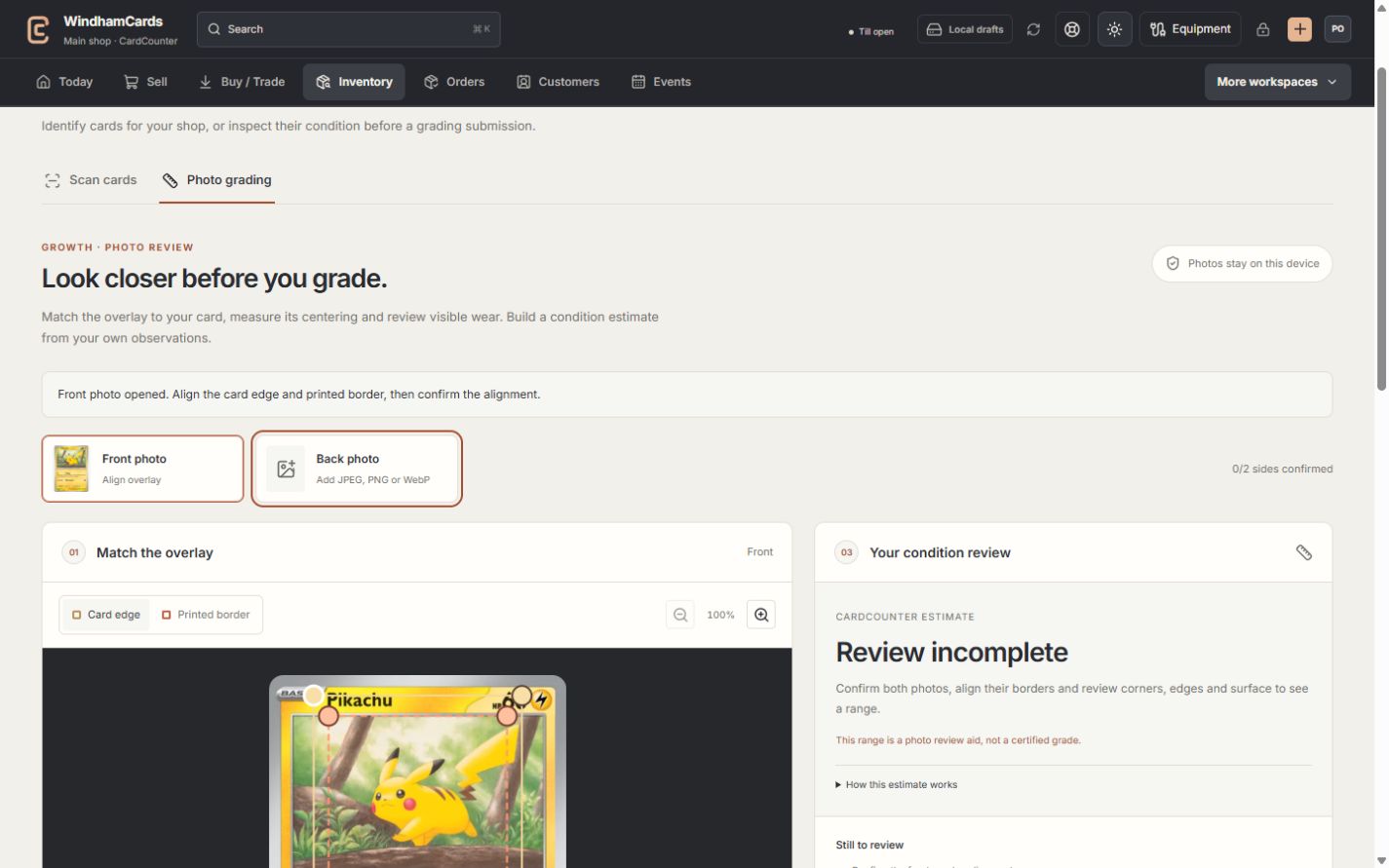
- 1Front and back photos
Review both sides; a missing side keeps the estimate incomplete.
- 2Match the overlay
Align the card boundary and printed inner border carefully.
- 3Condition review
Measurements and manual observations inform a CardCounter estimate.
Keep in mind
This is a CardCounter photo estimate from user alignment and visible observations. It is not authentication, a certified grade or a prediction of a PSA, Beckett, CGC or Ace result.
Professional grading examines the physical card and other factors. The tool does not write an official inventory slab grade.
If something goes wrong
A comparison says Incomplete / guidance
Check whether both sides are measured and whether that grading company has a numeric comparison supported by the tool. Guidance is not a failed certification.