Inspect cards and confirm identity
Match declared collection items to exact shop SKUs and assess merchant condition before quoting.
On this page
Before you begin
Select a collection, then open one of its inspection lines.
Staff with buying access; approvals and payouts depend on role. Company feature access and current setup requirements apply.
Step by step
- 1
Review the declared item
Compare the physical card with the customer’s description and quantity. Do not assume an online submitted name establishes a printing.
- 2
Select the exact SKU
Check game, set, collector number, language, finish and condition. Use the supported catalog search and keep uncertain matches unresolved.
- 3
Record physical condition
Inspect corners, edges and surface under good light. Enter the shop’s condition and useful inspection notes; photo grading is a separate estimate tool.
- 4
Set both offer amounts
Review the supported cash and credit offers and save the inspected line. Confirm the updated line status before moving to the next item.
On the screen
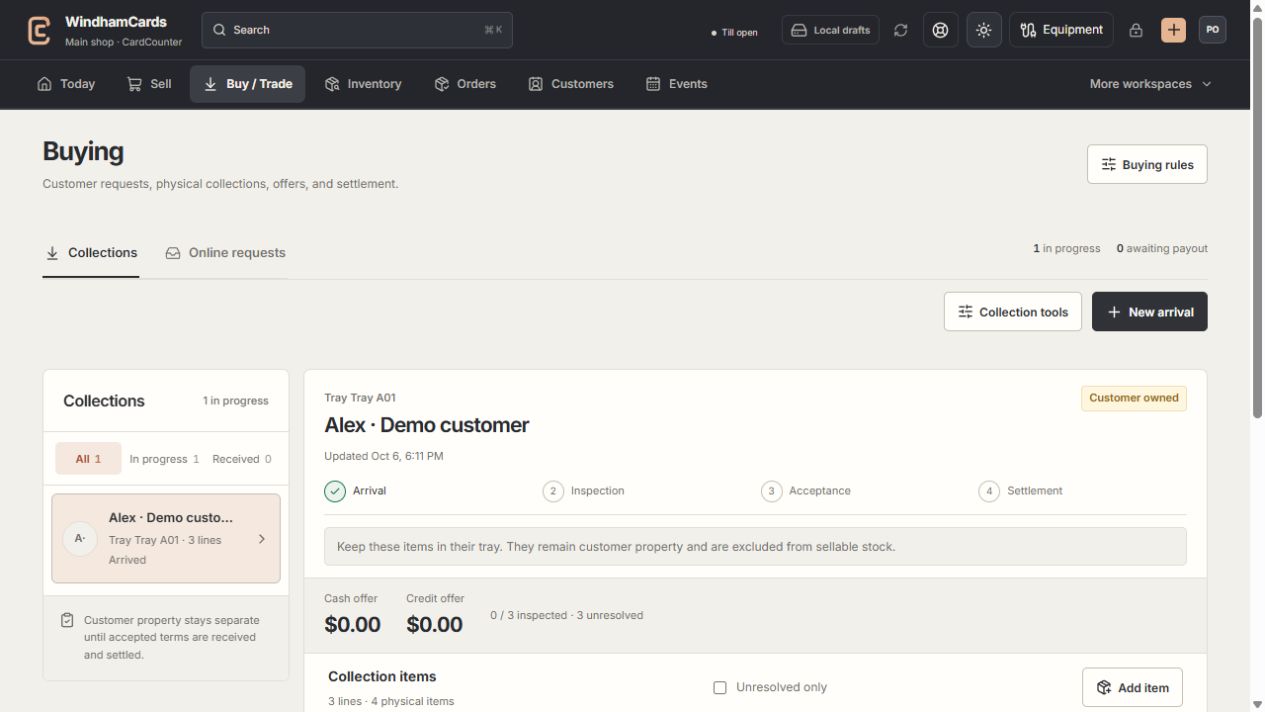
- 1Collection queue
Keep the customer and tray reference attached to the property.
- 2Progress and ownership
Arrival, inspection, acceptance and settlement are separate stages.
- 3Offer summary
Inspect the exact lines and their offers before creating a cash or credit quote.
Keep in mind
Merchandise condition such as NM or LP is distinct from an official slab grade. Do not invent a grader certification for an ungraded card.
Inspection is a recorded review, not payment or physical receipt into owned stock.
If something goes wrong
The item cannot be matched
Check variant details and use the catalog preparation flow if appropriate. Leave the line unresolved until the identity is reviewed.