Find workspaces and use shortcuts
Move between shop tools with the navigation, workspace search and register keyboard shortcuts.
On this page
Before you begin
Use the shop navigation at the top, or the sidebar if that is your saved interface preference.
All staff. Company feature access and current setup requirements apply.
Step by step
- 1
Switch to the job you need
Choose Today, Sell, Buy / Trade, Inventory, Orders, Customers or Events. More workspaces opens the additional management tools.
- 2
Search the workspace menu
Press Control K on Windows or Command K on macOS to search shop workspaces and permitted catalog results. Search terms such as labels, tax or scanner help find the right tool.
- 3
Use register shortcuts
In Sell, F2 starts a sale, F3 focuses product search, F4 opens the customer panel, F6 parks a sale, F8 opens returns and F9 opens review and payment. Check Keyboard shortcuts for the current list.
- 4
Choose a comfortable layout
Open Settings → Interface for top navigation or sidebar and density. Use the theme control for light or dark appearance. Settings → Desktop controls Windows startup display separately.
On the screen
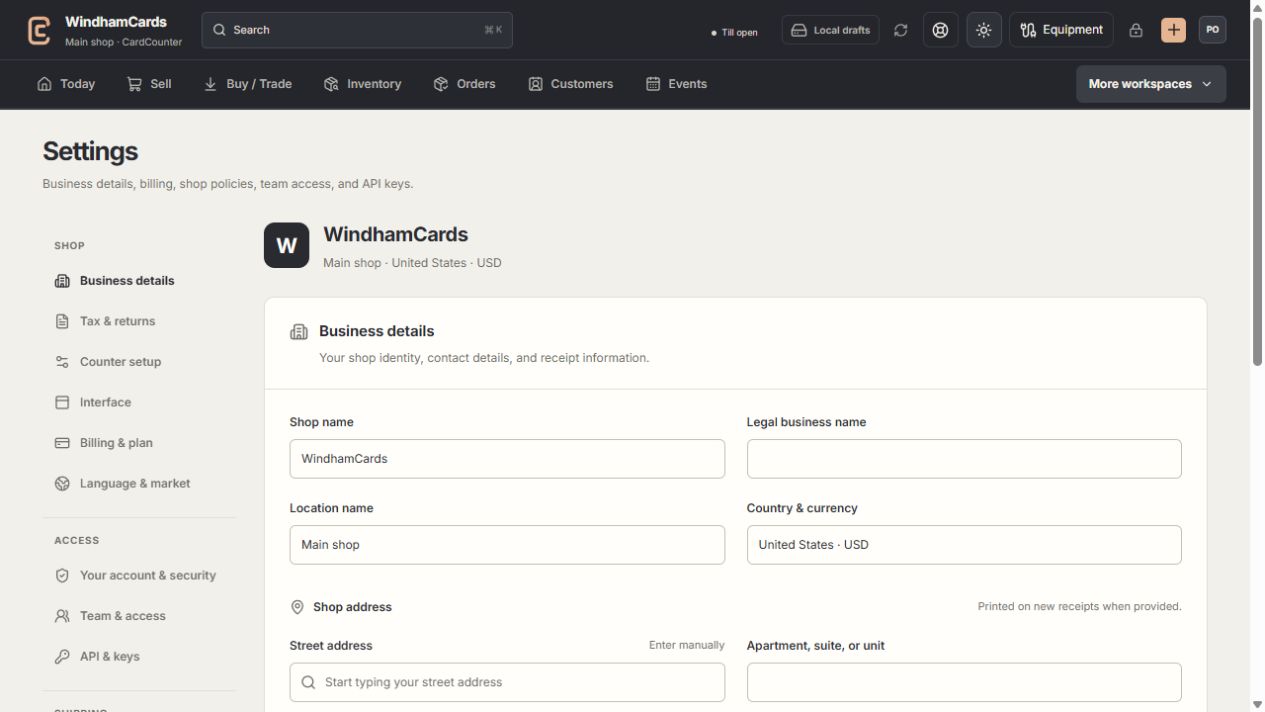
- 1Settings sections
Choose the business, policy, staff, shipping or device setting.
- 2Current values
Check the shop and location before editing a shared setting.
- 3Shop address
Complete the location address and contact fields, then save and read the result.
Keep in mind
A shortcut follows the same access and readiness checks as its button. Function keys may need the Fn key on some keyboards.
Switching workspaces can preserve a draft, but always check the selected record and current server quote when you return.
If something goes wrong
A shortcut does something in the browser
Use the visible button, check the keyboard’s function-key mode and keep focus inside the workspace.