Allocate incoming stock to customers
Record who is waiting for supplier stock and prepare a pickup cart when eligible.
On this page
Before you begin
Open Inventory → Customer allocations after creating an open supplier order and customer record.
Owners and managers; stock visibility depends on role. Company feature access and current setup requirements apply.
Step by step
- 1
Create an allocation
Choose the customer, incoming supplier-order line and supported quantity. Record any useful pickup note.
- 2
Track receipt progress
Compare received with expected supplier units. An allocation is not a receipt or a customer payment.
- 3
Create a pickup draft
When supported, use Create pickup draft for the allocation. Check the resulting cart reference and customer.
- 4
Complete normal checkout
Open the draft in Sell, quote current prices and reserve actual available stock before payment. Review cancellation through the allocation’s own action.
On the screen
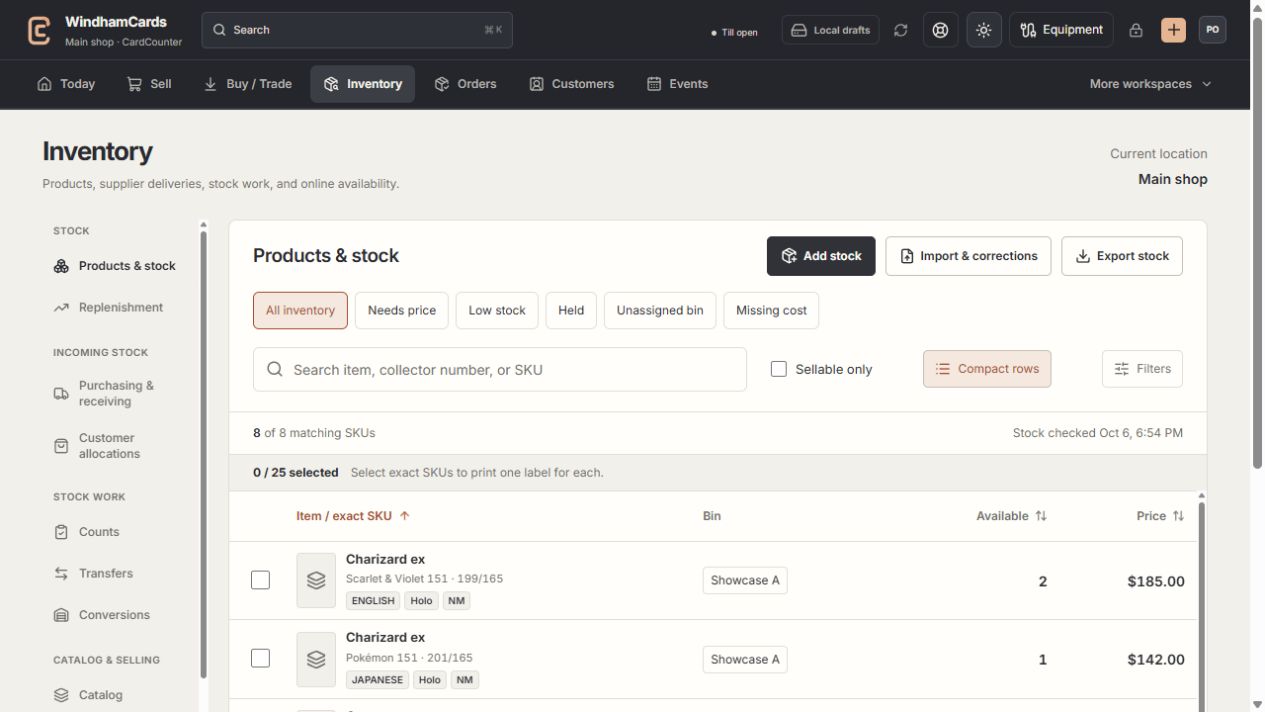
- 1Inventory sections
Move between stock work, pricing, channels, labels and scanning.
- 2Saved views and search
Find missing prices, low stock, holds or an exact shop SKU.
- 3Available stock
Read quantities and physical bins for the exact variant.
Keep in mind
Creating the pickup draft does not itself reserve stock or charge the customer.
The allocation remains linked to its supplier order and reviewed revision. Keep that link when recovering a lost response.
If something goes wrong
There is no stock to collect
Review outstanding supplier receipts. Incoming allocation quantities do not make unreceived stock available.