Create and revoke staff access
Manage cashier and manager accounts using owner-confirmed setup links and individual credentials.
On this page
Before you begin
Open Settings → Team & access.
Depends on the setting; shop-wide changes require management. Company feature access and current setup requirements apply.
Step by step
- 1
Review the staff list
Check username, role and Active, Setup pending or Disabled state. Protected owner or current-user records have narrower controls.
- 2
Create or edit a permitted member
Enter the verified name and username and choose Cashier or Manager. Review the role’s actual workspace permissions.
- 3
Confirm with the owner password
Complete the required owner confirmation inside the secure form. Use Create setup link or Save changes as appropriate.
- 4
Hand over the private setup link
The staff member uses it to choose their own password. Keep the link private and follow its expiry.
- 5
Revoke or reset when needed
Disable access or create a fresh setup link through the recorded action. New setup links can invalidate earlier links and sessions.
On the screen
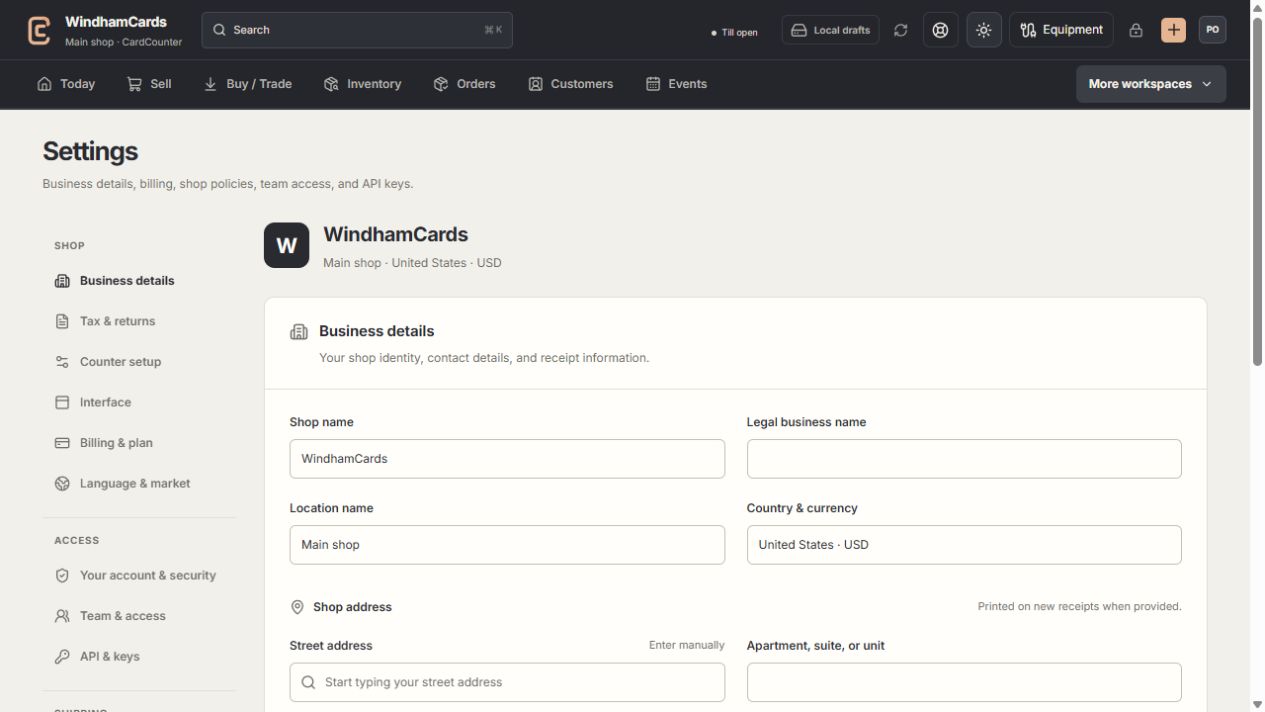
- 1Settings sections
Choose the business, policy, staff, shipping or device setting.
- 2Current values
Check the shop and location before editing a shared setting.
- 3Shop address
Complete the location address and contact fields, then save and read the result.
Keep in mind
Do not share the owner password or reuse one staff account for multiple people.
A manager can review permitted team information while owner-confirmed changes remain protected.
If something goes wrong
A setup link no longer works
Review the member’s current state and issue a fresh link only after verifying identity. Earlier sessions may have been deliberately revoked.