Set Windows fullscreen preferences
Change startup fullscreen from the platform’s Settings page and inspect the installed desktop version.
On this page
Before you begin
In a compatible Windows app, open Settings → Desktop.
Depends on the setting; shop-wide changes require management. Company feature access and current setup requirements apply.
Step by step
- 1
Read the current setting
Review Start in fullscreen, current display and installed version. The default opening experience uses fullscreen.
- 2
Choose your preference
Check or uncheck Start in fullscreen and use Save desktop preference. The saved choice applies immediately and on the next launch.
- 3
Use a temporary switch
F11 temporarily switches display mode without changing the startup preference. Save the preference when you want future launches to follow it.
- 4
Confirm an uncertain save
Use Read current desktop setting if the prior save needs confirmation. Inspect the actual saved result before trying another change.
On the screen
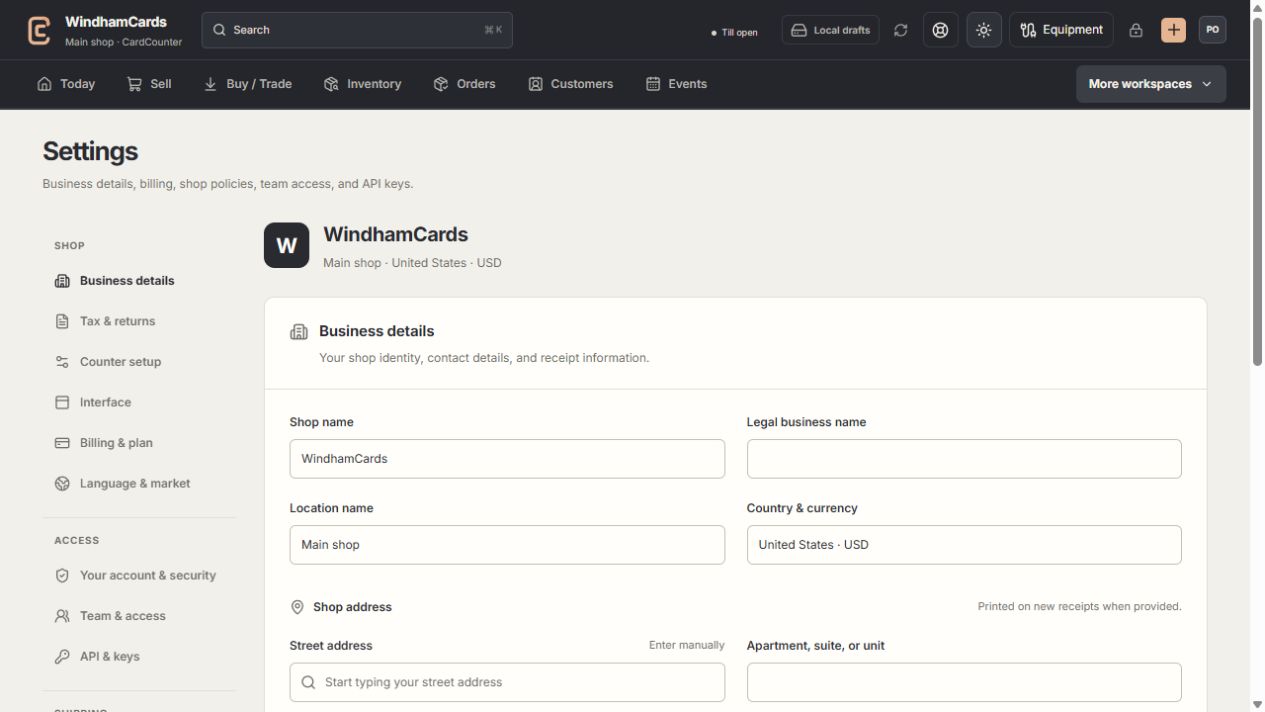
- 1Settings sections
Choose the business, policy, staff, shipping or device setting.
- 2Current values
Check the shop and location before editing a shared setting.
- 3Shop address
Complete the location address and contact fields, then save and read the result.
Keep in mind
This setting belongs to this Windows user on this computer. It does not change another employee’s machine or the location’s shared navigation.
The browser can show an unavailable explanation because it lacks the compatible Windows app bridge.
If something goes wrong
Desktop controls are unavailable
Check that you opened a compatible CardCounter Windows release and that the workspace is unlocked. Refresh the setting through its offered read action.