Use the CardCounter Windows app
Use the same live company workspace in a Windows shell with local desktop display preferences.
On this page
Before you begin
Obtain the current approved Windows installer through CardCounter’s authorized release channel.
Depends on the setting; shop-wide changes require management. Company feature access and current setup requirements apply.
Step by step
- 1
Check the release
Use the intended version and verified publisher information for a customer release. Internal test builds can be unsigned and are identified as internal tests.
- 2
Install or upgrade the existing app
Use the supplied installer’s existing-installation upgrade path. Keep company session and local settings intact where the release supports them.
- 3
Sign in to the same workspace
Use your company staff account and an internet connection. The Windows app follows the same company approval and live site updates.
- 4
Review desktop settings
Open Settings → Desktop for startup fullscreen and the installed version. Use the web workspace on macOS or Linux.
On the screen
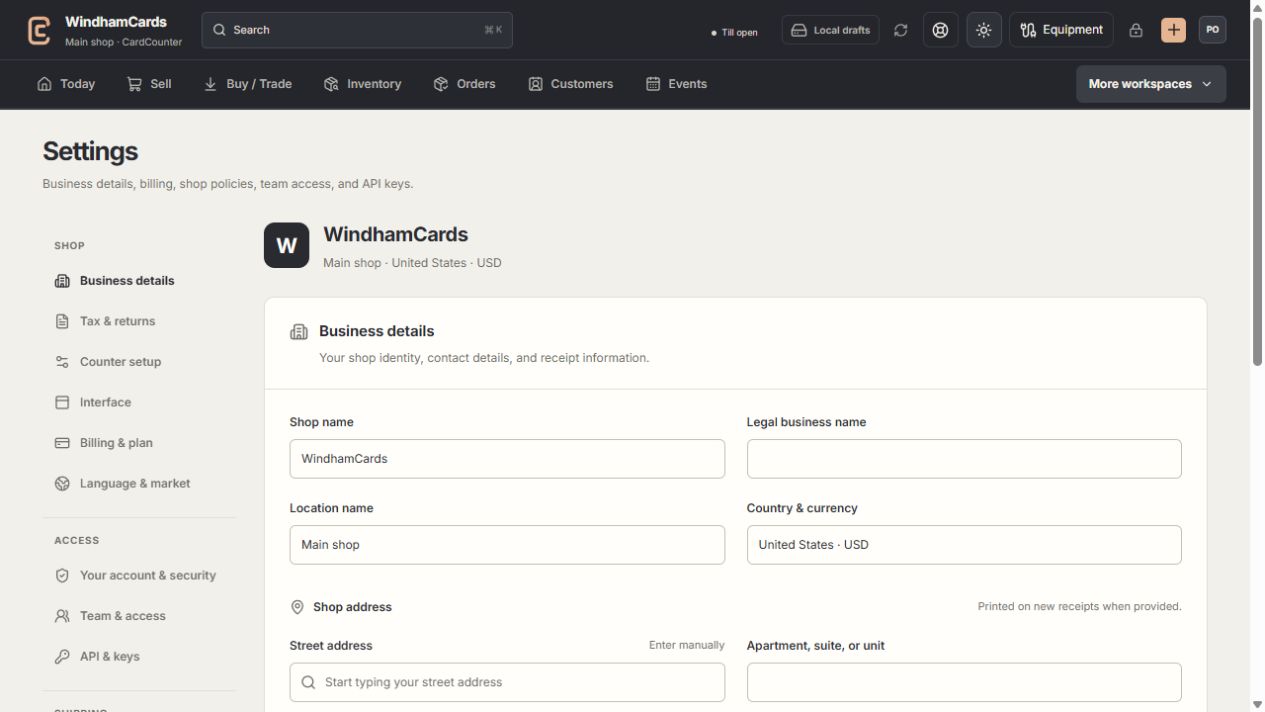
- 1Settings sections
Choose the business, policy, staff, shipping or device setting.
- 2Current values
Check the shop and location before editing a shared setting.
- 3Shop address
Complete the location address and contact fields, then save and read the result.
Keep in mind
Customer downloads require an approved signed release. This documentation does not offer an unsigned internal executable as a public download.
Updating the live website and updating the native Windows shell are separate release operations. Native version information appears in the desktop app.
If something goes wrong
The app cannot sign in
Read the actual sign-in or connection error, check internet access and use the official recovery flow. Contact support with the installed version.