Review shop activity and audit records
Use recorded activity to explain which operation changed a shop record and when.
On this page
Before you begin
Open Settings → Activity or the permitted developer activity view.
Depends on the setting; shop-wide changes require management. Company feature access and current setup requirements apply.
Step by step
- 1
Select the intended scope
Check the current shop, location and staff access. Use supported filters for the operation or record being investigated.
- 2
Read the recorded event
Inspect action, time, actor and object reference where available. A request attempt can differ from a completed operation.
- 3
Follow the source record
Open the related sale, acquisition, stock movement or provider record to verify the actual outcome.
- 4
Export when needed
Use permitted audit or related record exports for a private reconciliation. Preserve identifiers and avoid publishing customer information.
On the screen
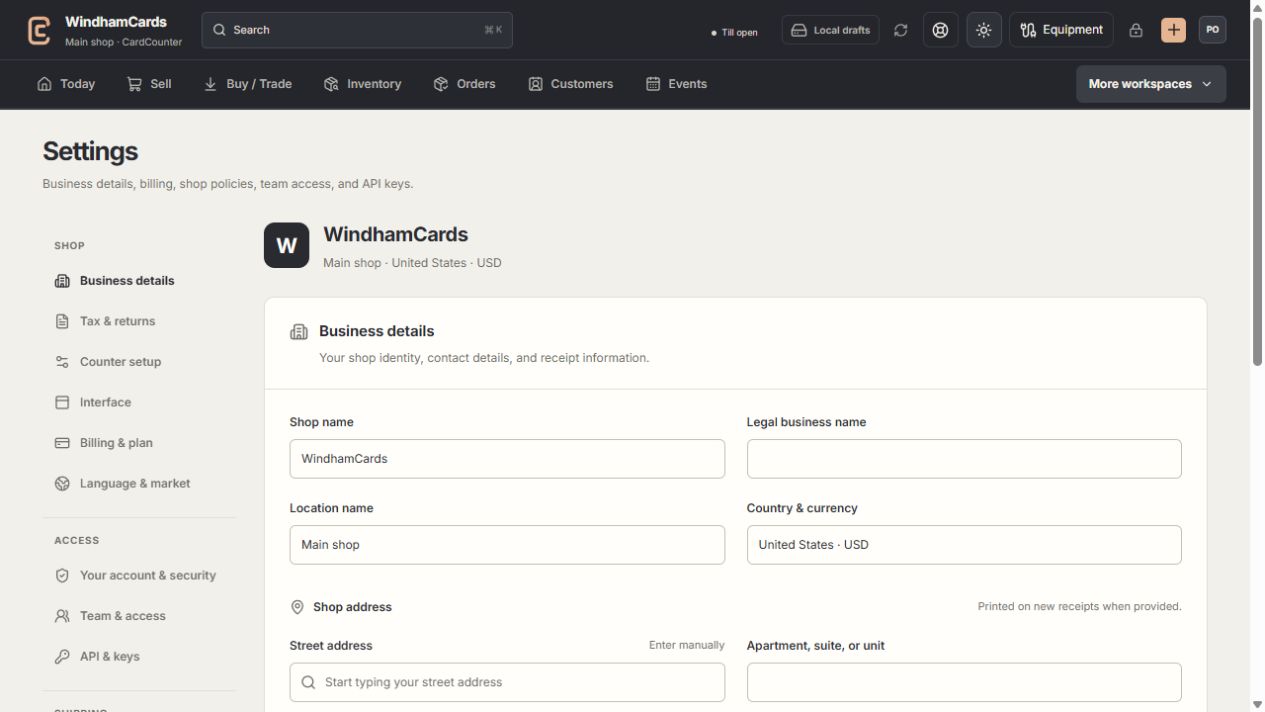
- 1Settings sections
Choose the business, policy, staff, shipping or device setting.
- 2Current values
Check the shop and location before editing a shared setting.
- 3Shop address
Complete the location address and contact fields, then save and read the result.
Keep in mind
Activity is evidence for investigation, not permission to rewrite a completed transaction.
A provider delivery attempt and a shop mutation can have different records and timing.
If something goes wrong
You cannot find an action
Check filters, pagination, record reference and time zone. Ask support with the known non-sensitive reference if the outcome is unclear.