Welcome to CardCounter
Learn how the counter, inventory, buying desk and shop website work together.
On this page
Before you begin
Sign in to your staff workspace using the account your shop administrator provided.
All staff. Company feature access and current setup requirements apply.
Step by step
- 1
Start with Today
Use Today for the current shop overview and daily work that needs attention. Check the shop and location before changing a record.
- 2
Choose a workspace
Sell runs the register. Inventory keeps exact products and physical stock. Buy / Trade handles collections. Orders, Customers and Events connect the remaining shop work.
- 3
Open the rest of the tools
Use More workspaces for Website, Connections, Reporting and Settings. Inventory has its own sections for labels, receiving and scanning.
- 4
Follow a complete record
A product identifies the exact item. Receiving records physical stock. A sale records the customer, tender and receipt. Opening a draft or searching the catalog alone does not complete these tasks.
On the screen
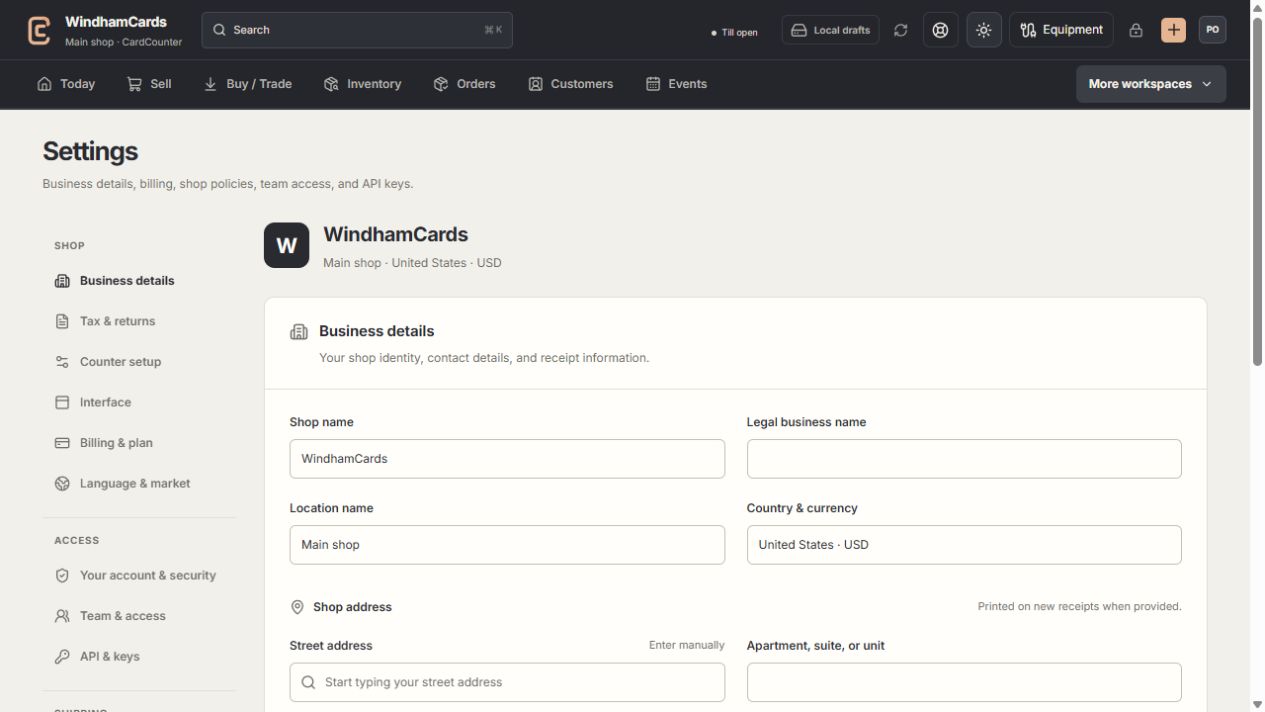
- 1Settings sections
Choose the business, policy, staff, shipping or device setting.
- 2Current values
Check the shop and location before editing a shared setting.
- 3Shop address
Complete the location address and contact fields, then save and read the result.
Keep in mind
These guides use an example shop and sample records. They do not show a merchant’s real customers or financial results.
A visible feature still needs your role, company access and any required shop or provider approval. The current screen is the authority for whether an action is ready.
If something goes wrong
A workspace is missing
Ask your owner to check company feature access and your staff role. Use the plans and access guide before assuming a navigation issue.