Maintain the product catalog
Prepare exact variants and shop-specific items while keeping catalog identity separate from stock.
On this page
Before you begin
Open Inventory → Catalog.
Owners and managers; stock visibility depends on role. Company feature access and current setup requirements apply.
Step by step
- 1
Find the source or shop product
Search the permitted catalog and review exact variants. Check the source identity, language, finish, condition and edition.
- 2
Prepare a variant for review
Use the catalog preparation control, assign your exact shop SKU and set an initial price only when justified. An unpriced variant can remain inactive.
- 3
Review before publication
Read the pending catalog review and any conflict or missing fields. Publish the intended exact variant through the supported approval action.
- 4
Create custom items when appropriate
Use Custom items & catalog tools for shop-specific sealed products, supplies or other merchandise. Avoid forcing a custom item into an unrelated card identity.
- 5
Receive owned copies separately
Use Add stock, opening import, supplier receiving or buying intake to record physical stock and costs.
On the screen
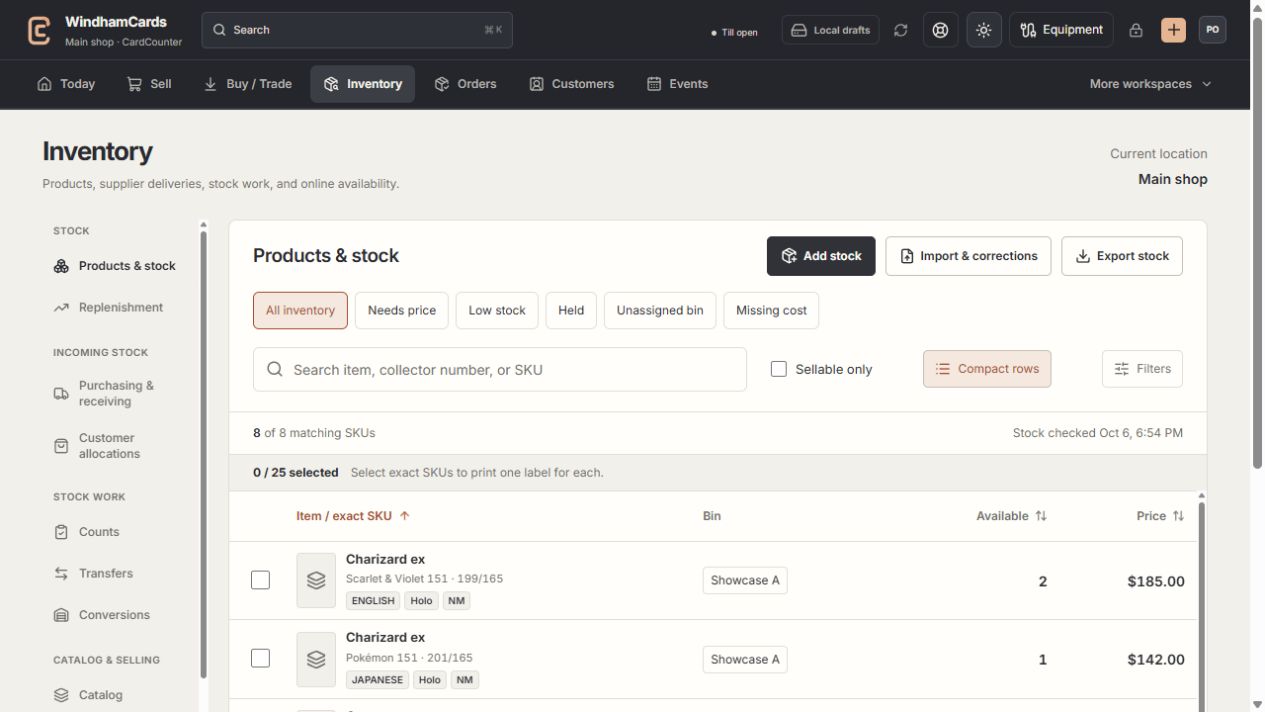
- 1Inventory sections
Move between stock work, pricing, channels, labels and scanning.
- 2Saved views and search
Find missing prices, low stock, holds or an exact shop SKU.
- 3Available stock
Read quantities and physical bins for the exact variant.
Keep in mind
Catalog preparation and publication do not create stock, acquisition cost or a receipt.
A source refresh needs approved access. Scheduled refresh approval does not apply shop prices automatically.
If something goes wrong
A prepared product is not sellable
Check publication, active state, required shop price and physical available stock. Resolve the review instead of receiving into an unrelated SKU.