Save business details
Maintain shop identity, legal name, address, contact details and the footer used by new receipts.
On this page
Before you begin
Open Settings → Business details.
Depends on the setting; shop-wide changes require management. Company feature access and current setup requirements apply.
Step by step
- 1
Review shop and location identity
Enter the actual shop name, legal business name and location name. Confirm the displayed country and currency.
- 2
Complete the address
Use supported suggestions if available, then verify apartment or unit, city, region and postal code. Manual entry remains available when suggestions are unavailable.
- 3
Set customer contact
Choose the email, phone and website intended for customers. Review the receipt footer for useful customer-facing information.
- 4
Save and verify
Use Save business details and read the confirmed status. Return to Counter setup if a changed business profile requires approval review.
On the screen
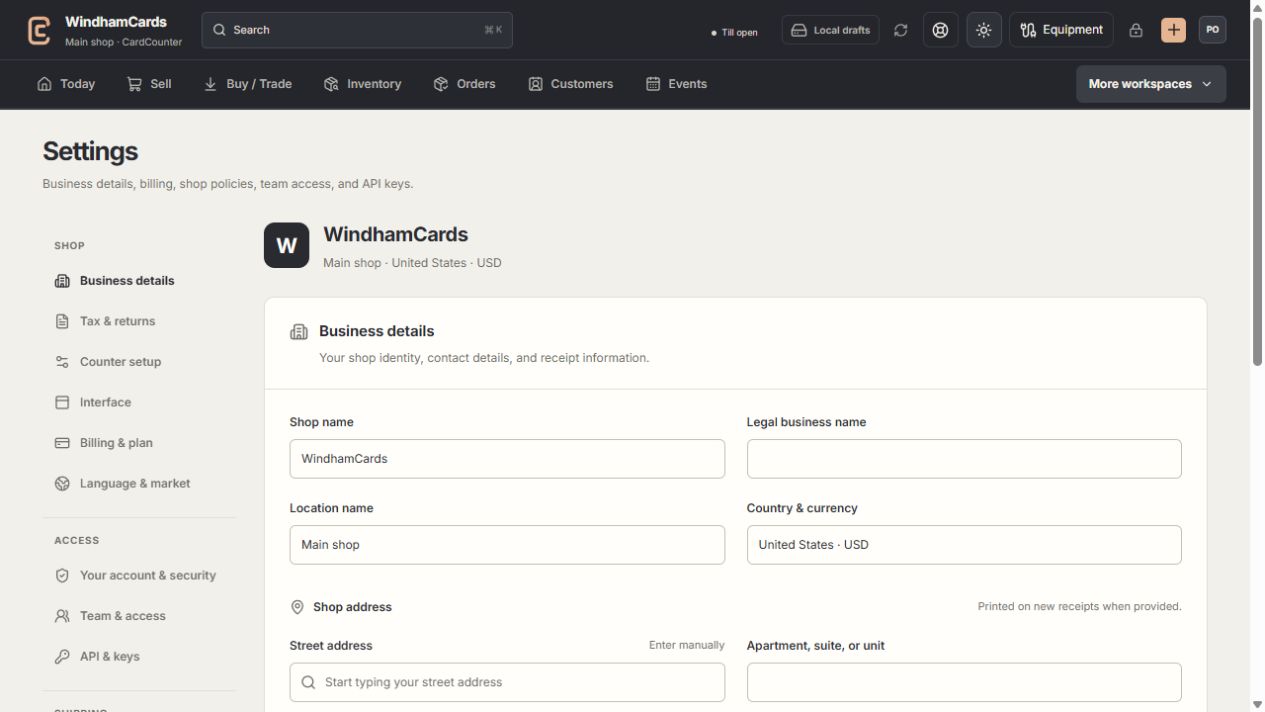
- 1Settings sections
Choose the business, policy, staff, shipping or device setting.
- 2Current values
Check the shop and location before editing a shared setting.
- 3Shop address
Complete the location address and contact fields, then save and read the result.
Keep in mind
New receipts capture the saved details; existing receipts retain their original information.
Profile completeness is separate from counter approval. A profile update can require renewed review before transactions.
If something goes wrong
Address suggestions fail
Enter and verify the address manually where permitted. Read the suggestion error rather than replacing the address with an unrelated match.