Add pages and shop news
Create useful customer pages or dated news and include them in your site’s reviewed navigation.
On this page
Before you begin
Open Website → Pages & news.
Owners and managers with website access. Company feature access and current setup requirements apply.
Step by step
- 1
Create a page or news item
Choose the supported content kind, enter a descriptive title and write the customer-facing body.
- 2
Review the URL slug
Use a stable readable slug and check for conflicts. A changed title should not accidentally change a published URL without review.
- 3
Choose publication details
For news, review the supported publication date and visibility. Check links to related shop pages and the content’s place in navigation.
- 4
Preview and publish the version
Read the saved content in the private preview, then publish the intended website version. Verify the public page and its navigation link.
On the screen
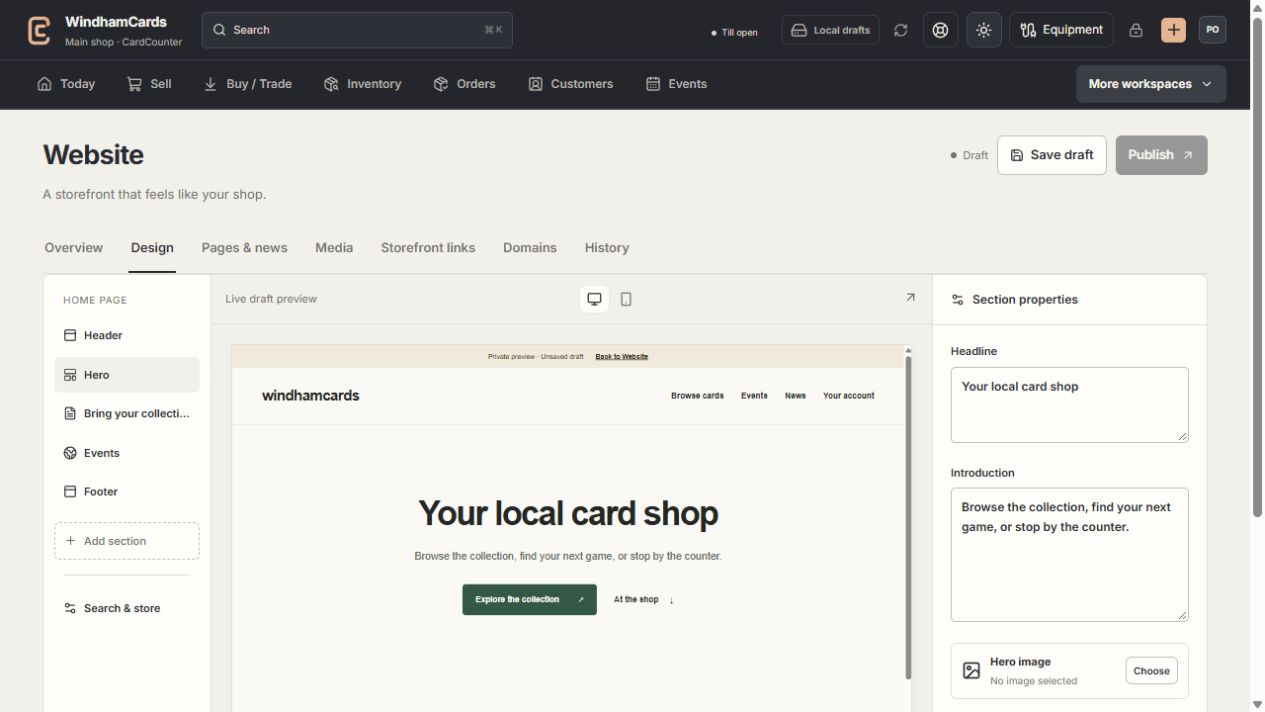
- 1Website tools
Design, pages, media, storefront links, domains and history.
- 2Section properties
Edit the selected section, then save and review the complete draft.
- 3Private preview
Check desktop and mobile before publishing the saved version.
Keep in mind
Saving a page inside a draft does not publish it to customers until that website version is published.
Do not put private customer data, access codes or staff procedures into a public page.
If something goes wrong
A page link fails
Check the saved slug, published version and navigation target. Avoid deleting a public page without reviewing links that depend on it.