Set a permanent shop price
Prepare and review an owner-approved price for one exact SKU.
On this page
Before you begin
Open Inventory → Pricing and select the exact shop product.
Owners with pricing access. Company feature access and current setup requirements apply.
Step by step
- 1
Inspect the current record
Check printing, condition, current price, price revision and any temporary override.
- 2
Choose Set shop price
Enter the new supported-currency amount and a specific reason for the change. Use Preview price change to prepare a review.
- 3
Review the preview
Compare the previous and proposed amounts. The manual preview expires after 15 minutes; prepare a fresh review if it is no longer current.
- 4
Apply the approved review
Use the owner approval action when available. Verify the recorded shop price and its history before quoting the next sale.
On the screen
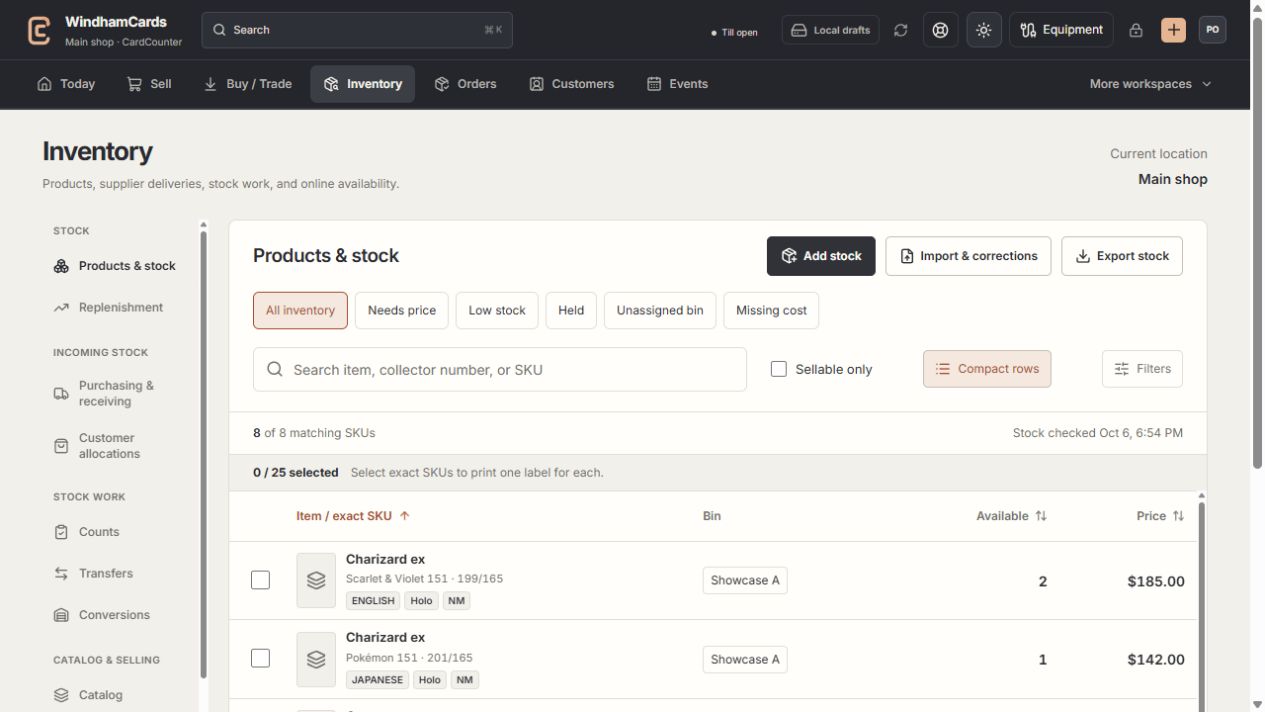
- 1Inventory sections
Move between stock work, pricing, channels, labels and scanning.
- 2Saved views and search
Find missing prices, low stock, holds or an exact shop SKU.
- 3Available stock
Read quantities and physical bins for the exact variant.
Keep in mind
Pricing retains source links and rules. A new price does not activate an inactive item or create stock.
Temporary overrides are protected and must be reviewed through their own flow. Existing quoted carts may need a fresh quote after a price change.
If something goes wrong
The preview is stale
Refresh the SKU, review its current price revision and prepare a new preview. Do not submit an old approval against a changed record.