Staff roles and permissions
Use individual owner, manager and cashier accounts with access appropriate to their work.
On this page
Before you begin
Open Settings → Team & access as a permitted shop administrator.
All staff. Company feature access and current setup requirements apply.
Step by step
- 1
Assign an individual account
Give each person their own username and role. A shared owner login removes the ability to identify who changed a record.
- 2
Understand the role boundary
Owners manage company-sensitive actions. Managers can use permitted management workspaces. Cashiers work with permitted selling, customer, stock, buying, event, label and account tools.
- 3
Review sensitive actions
Billing, API keys, provider authorization and some pricing approvals can have narrower permissions than the workspace itself. Check the action’s stated requirement.
- 4
Use cashier preview carefully
If available to your role, cashier preview shows the restricted view without granting cashier write authority. Exit the preview before making changes.
On the screen
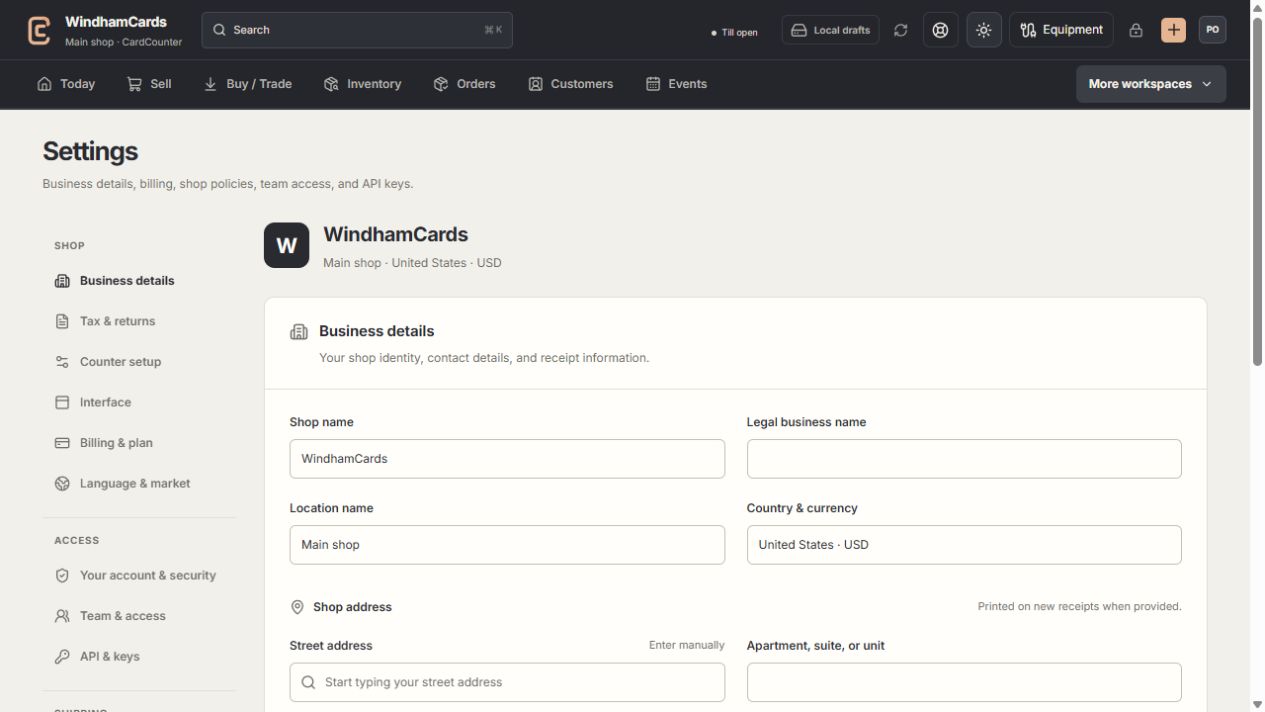
- 1Settings sections
Choose the business, policy, staff, shipping or device setting.
- 2Current values
Check the shop and location before editing a shared setting.
- 3Shop address
Complete the location address and contact fields, then save and read the result.
Keep in mind
Company feature restrictions still apply to every role. A deep link never grants access by itself.
Revoke access when someone leaves and review active sessions. Do not send passwords or private access codes in public messages.
If something goes wrong
The page opens but a button is blocked
Read the button explanation. Workspace access and permission to perform that action can differ.