Preview, publish and review website history
Keep editing private, publish an exact saved version and verify customer-visible content.
On this page
Before you begin
Open Website → Design and History.
Owners and managers with website access. Company feature access and current setup requirements apply.
Step by step
- 1
Save your draft
Review unsaved changes and wait for the acknowledged version save. A publish action must refer to the intended saved content.
- 2
Preview the saved version
Open its private preview and check desktop and mobile layout, text, media, links and customer-visible policies.
- 3
Review publication
Choose the supported publish action and inspect which version will replace the current public version. Check its status after confirmation.
- 4
Verify as a visitor
Open the public shop URL and review the actual published page. Private preview state does not prove the public website changed.
- 5
Use History for earlier versions
Inspect recorded versions and publication history. Where supported, review an earlier saved version before republishing it.
On the screen
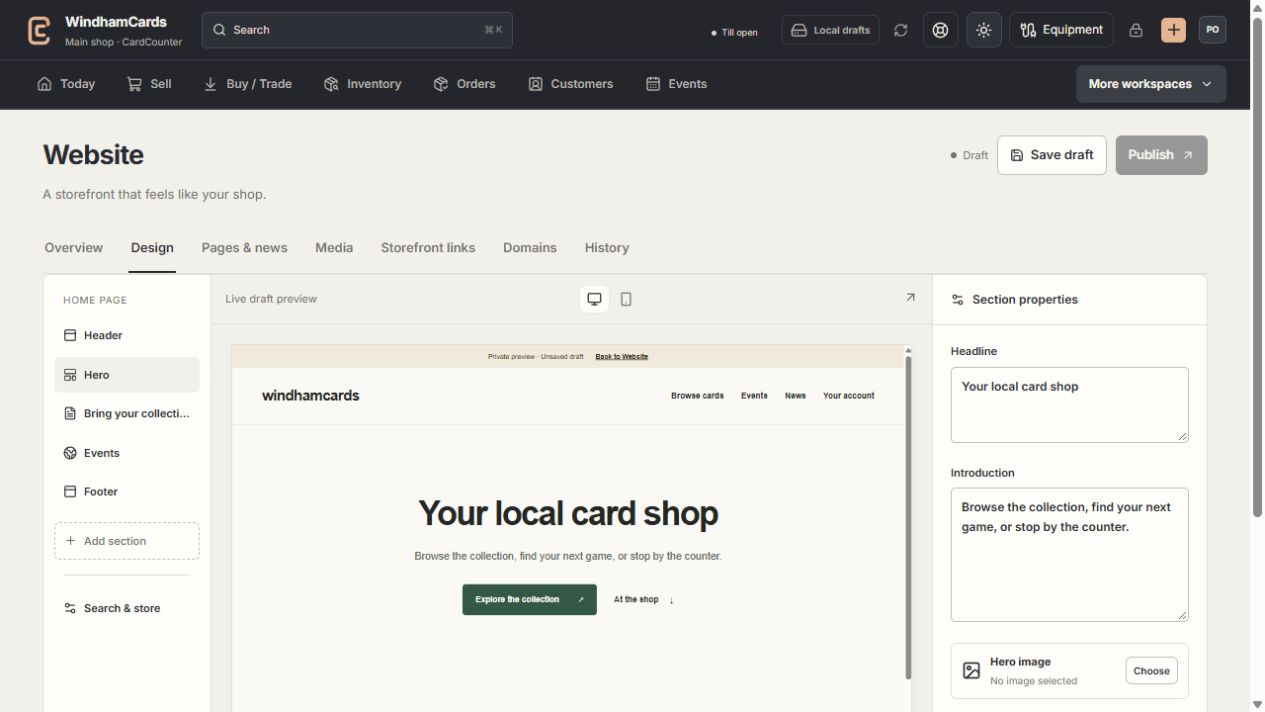
- 1Website tools
Design, pages, media, storefront links, domains and history.
- 2Section properties
Edit the selected section, then save and review the complete draft.
- 3Private preview
Check desktop and mobile before publishing the saved version.
Keep in mind
If another user changes the draft or publication, refresh and review the current version instead of overwriting their work.
The public site continues to use its published version while a different draft is edited.
If something goes wrong
Publish result is unknown
Use the saved request recovery and publication history. Reconcile the existing version before another publish action.