Scan with your phone
Pair the phone camera to your shop scanner and review captured cards on the computer.
On this page
Before you begin
Open Scan cards on the computer, then choose Scan with phone.
Owners and managers with scanner access. Included with Growth.
Step by step
- 1
Prepare the pairing
Use the computer’s current pairing link or QR code. Open it on the phone you intend to use and keep the computer review queue open.
- 2
Allow camera access
On the paired phone page, allow the camera for the intended site. Use the phone’s browser camera permissions if a previous denial prevents capture.
- 3
Choose Auto or Manual
Auto captures according to the scanner’s readiness checks. Manual lets you choose when to capture a single card. Keep the card steady and readable.
- 4
Review on the computer
Captured cards appear in the shop’s scanner queue. Confirm exact identity, condition, quantity and pricing on the computer before receiving stock.
- 5
Finish the pairing
End or replace the session from the supported computer controls when the phone changes hands. Pairing is scoped and can expire.
On the screen
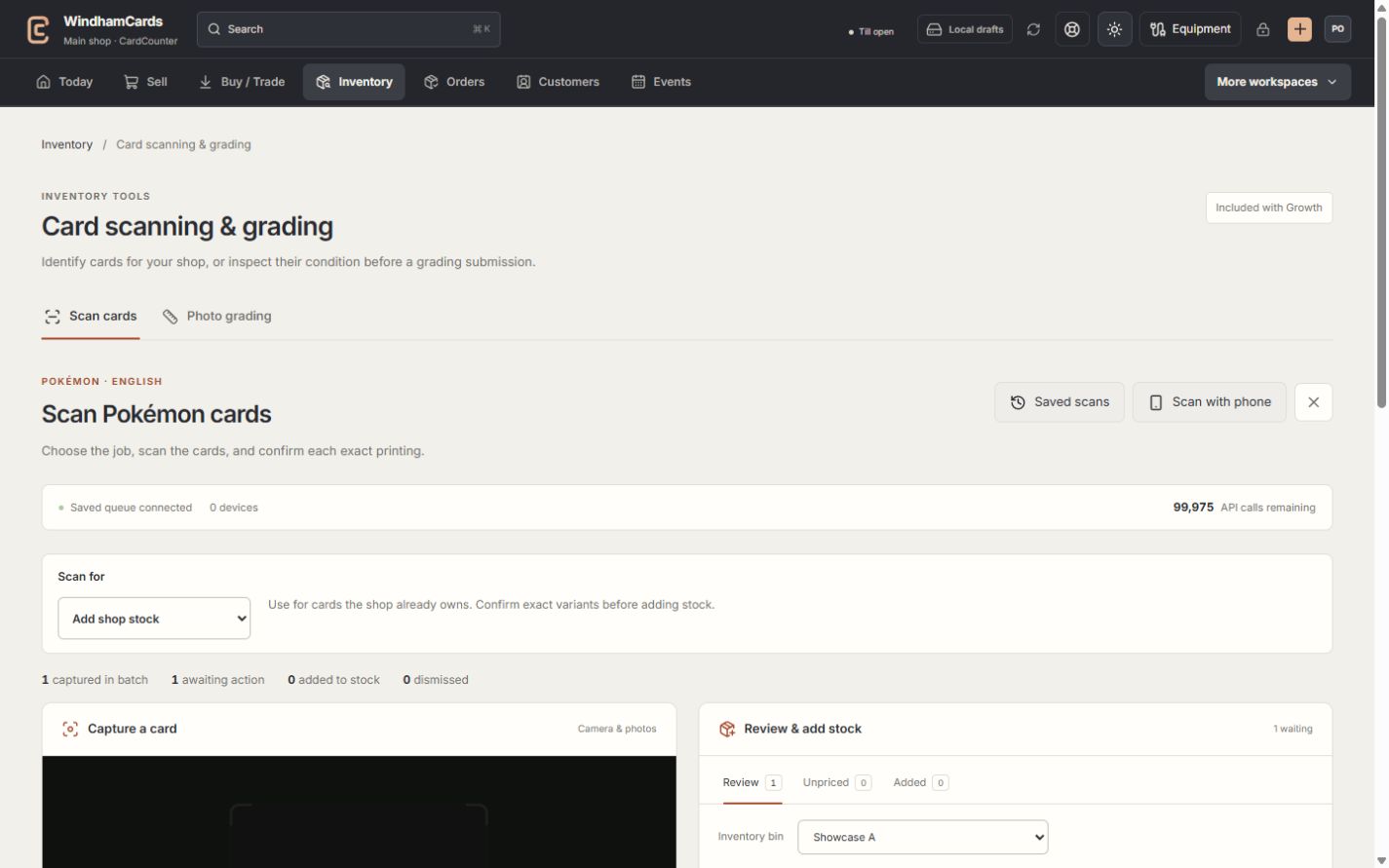
- 1Choose the card tool
Card identification and photo grading have separate review flows.
- 2Phone capture
Pair a phone here, then review its captured cards at the computer.
- 3Review at the computer
Confirm the exact match before preparing an inventory receipt.
Keep in mind
The phone page focuses on camera capture. It does not need to show the full staff website, company usage or other shop management tools.
A paired phone cannot authorize photo grading or bypass staff and Growth access. Keep the pairing link private.
If something goes wrong
The phone is disconnected
Check the saved pairing status on the computer, network and camera permission. Resume the supported pairing flow instead of using an old expired link.