Park and recall a sale
Keep a customer’s item list while serving another customer, then review it before checkout.
On this page
Before you begin
Open an editable sale in Sell.
Staff with counter access. Company feature access and current setup requirements apply.
Step by step
- 1
Review the cart before parking
Confirm its customer, label and quantities so it is easy to recognize later. Parking preserves a draft; it is not payment.
- 2
Park the sale
Choose Park or F6. Start the next sale and continue serving customers without mixing their items.
- 3
Recall the correct draft
Choose Recall and select the saved sale. Read its customer, last update and item list before resuming.
- 4
Recheck the current quote
Refresh current stock and prices. Any expired hold or changed quantity must be reviewed before a new payment is attempted.
On the screen
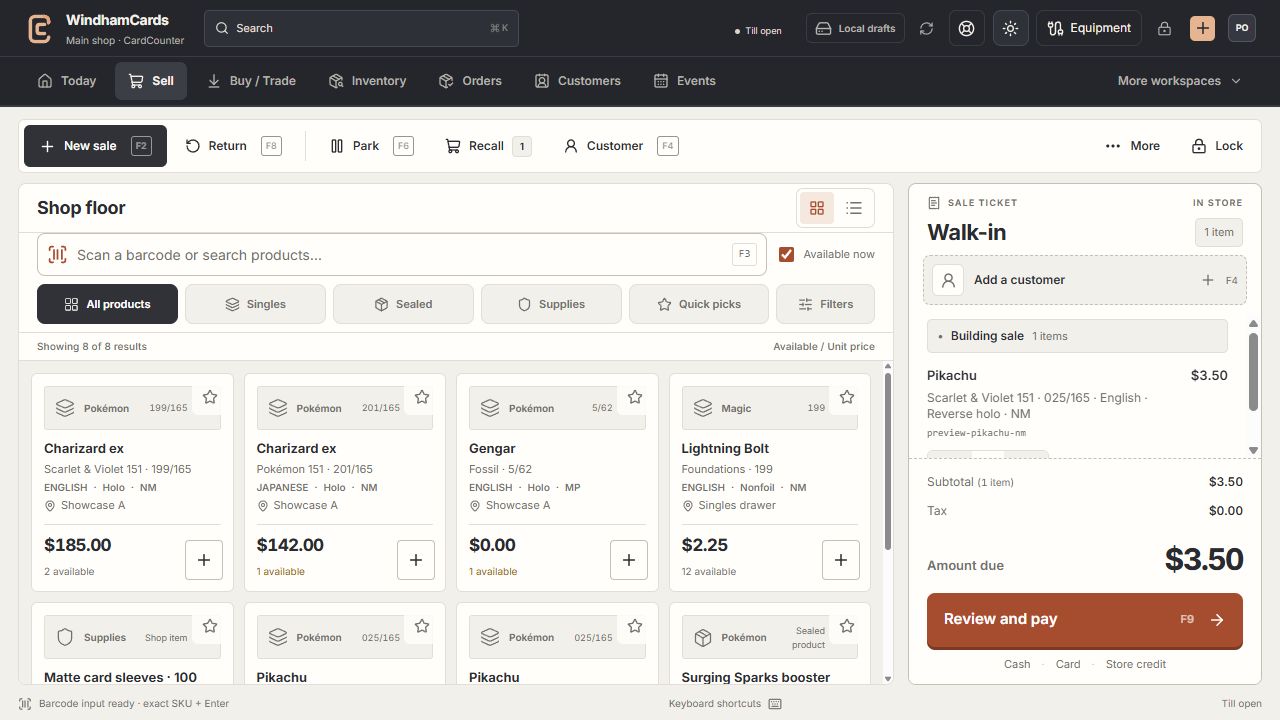
- 1Register actions
Start, park or recall a sale and open the customer panel.
- 2Exact product search
Search or scan, then confirm the printing, finish and condition.
- 3Sale ticket
Review the customer, quantities and current amount before payment.
Keep in mind
Do not promise that a parked list keeps stock reserved indefinitely. Read the actual hold status and expiration.
If a previous payment was uncertain, reconcile that payment record instead of creating a second sale from the same items.
If something goes wrong
The recalled total changed
A new quote reflects current price, tax or inventory state. Review the differences with the customer before accepting payment.