Open, reconcile and close the till
Record a counted opening float and compare physical closing cash with recorded drawer activity.
On this page
Before you begin
Use the till status in the shop header. A closed till can be clicked to start opening.
Staff with counter access. Company feature access and current setup requirements apply.
Step by step
- 1
Count the opening cash
After counter approval, enter the cash physically present in this register and choose Open drawer & start selling. Check the register and location.
- 2
Review drawer activity
During the day, inspect cash sales, buying payouts, cash refunds and other supported drawer records. Store credit and card activity are not physical drawer cash.
- 3
Count closing cash
Open the till review and enter the physical closing count. Compare it with expected cash from this exact till session.
- 4
Explain a variance
Record the required reason for a difference and complete the authorized close. Keep the closing record for later daily-close reporting.
On the screen
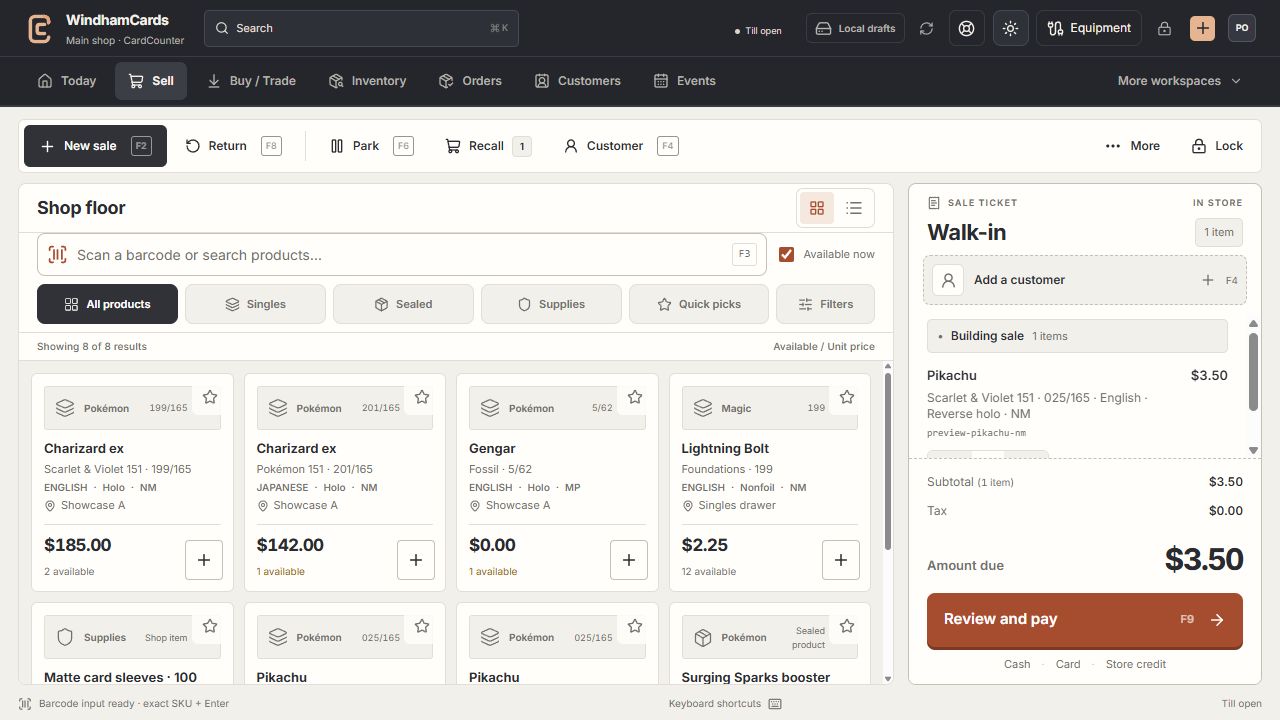
- 1Register actions
Start, park or recall a sale and open the customer panel.
- 2Exact product search
Search or scan, then confirm the printing, finish and condition.
- 3Sale ticket
Review the customer, quantities and current amount before payment.
Keep in mind
Do not replace an unexpected variance with the system’s expected number. Record what was counted and investigate the difference.
A closed or review-state till can block new cash operations while existing receipts remain available.
If something goes wrong
The expected amount looks wrong
Review the session’s opening float, payouts and confirmed cash refunds. Check for an unresolved request before closing again.