Publish customer-facing card lists
Review supported catalog lists or releases and their public visibility without publishing private customer lists.
On this page
Before you begin
Use Inventory → Catalog and the supported public card-list controls.
Owners and managers with website access. Company feature access and current setup requirements apply.
Step by step
- 1
Choose the public catalog list
Review its title, exact card identities and intended customer purpose. Customer wants and deck lists are separate private account records.
- 2
Review supported publication settings
Check the list or release state and permitted public destination. Confirm that only intended catalog information is included.
- 3
Connect the website navigation
Link to the supported public page through the website’s reviewed navigation or section controls.
- 4
Verify the public result
Open the page as a visitor and check card identity, availability context and the published list version.
On the screen
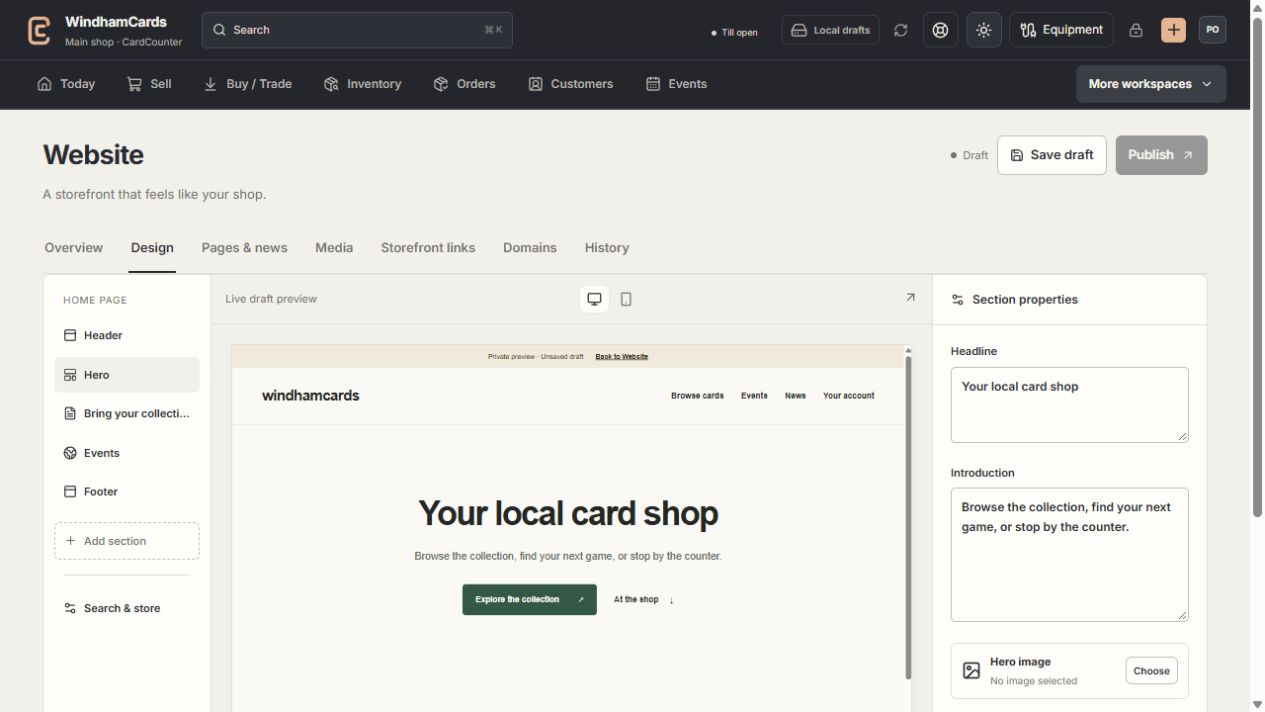
- 1Website tools
Design, pages, media, storefront links, domains and history.
- 2Section properties
Edit the selected section, then save and review the complete draft.
- 3Private preview
Check desktop and mobile before publishing the saved version.
Keep in mind
A public list is not a guarantee that every entry is in owned available inventory. Check the page’s stated stock and catalog basis.
Never publish a customer’s private wants, contact details or access links as a public catalog list.
If something goes wrong
The public list is missing
Check publication state, website link and company access. Use the catalog’s current publication controls rather than guessing a private URL.