Manage seat holds and waitlists
Track demand for full sessions without treating a waitlist position as a confirmed seat.
On this page
Before you begin
Open the selected session’s guest list and waitlist filters.
Staff with event access; session changes require management. Company feature access and current setup requirements apply.
Step by step
- 1
Read capacity and commitments
Compare session capacity, confirmed guests and temporary held seats. A held seat can expire without becoming a registration.
- 2
Find waitlisted guests
Use the Waitlist filter and read the available supported actions. Confirm the intended person before changing their position.
- 3
Follow the offered promotion flow
When capacity is available, use the supported registration or promotion action. Check whether payment or customer confirmation is still required.
- 4
Verify the resulting state
Read the guest’s recorded status and ticket eligibility. Explain any remaining payment deadline or hold expiry.
On the screen
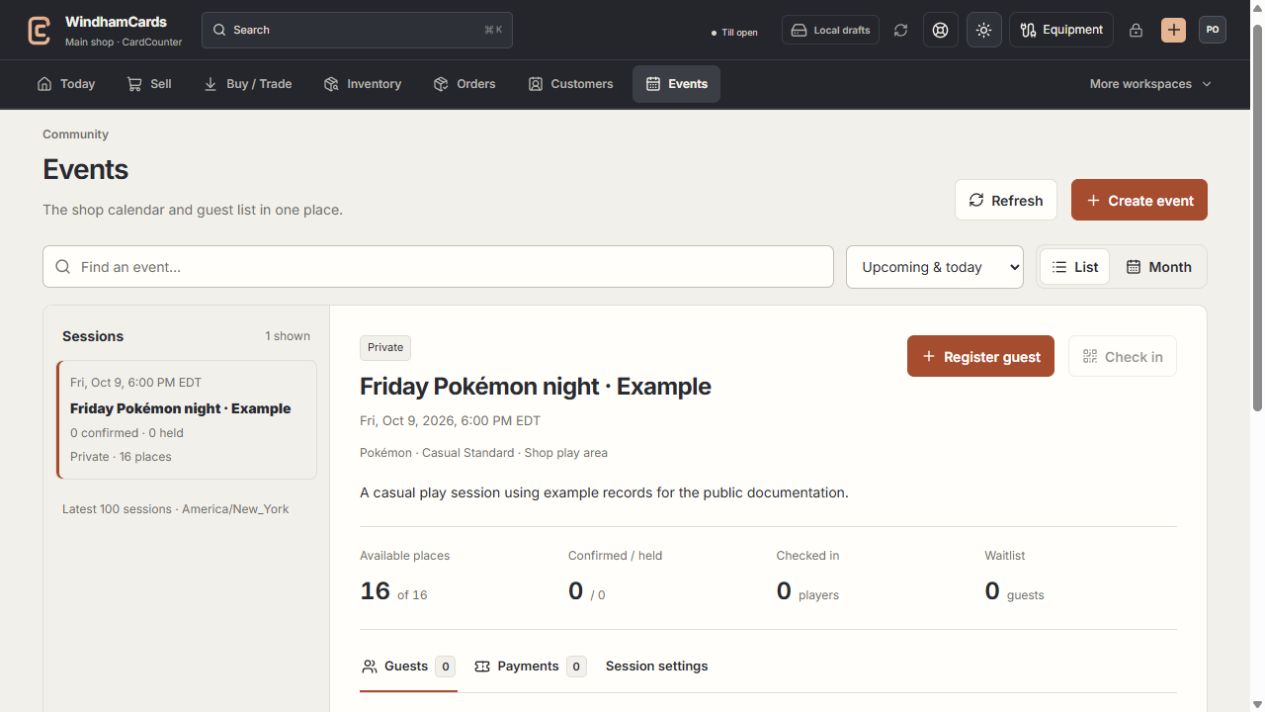
- 1Calendar or list
Find the intended session and verify the shop time zone.
- 2Session and guests
Capacity, held seats and confirmed registrations are separate.
- 3Manage sessions
Review scheduling, ticket and publication changes with management access.
Keep in mind
A place on the waitlist is not admission. Keep confirmed registration, seat hold and waitlist counts distinct.
Use the event’s current supported actions; do not change capacity merely to hide an unresolved payment or expired hold.
If something goes wrong
The event looks full unexpectedly
Inspect temporary seat holds and their expiry, confirmed registrations and the current server state.