Configure points and shop rewards
Set earning rules, create approved benefits and redeem rewards from the customer profile or POS panel.
On this page
Before you begin
Open Customers → Points & rewards with permitted management access.
Staff with customer access. Company feature access and current setup requirements apply.
Step by step
- 1
Configure the program
Choose Configure rewards, review its enabled state, currency and points earned per supported purchase amount.
- 2
Build the reward catalogue
Set the reward name, points cost and supported benefit. Keep paused rewards separate from active rewards available to customers.
- 3
Review customer eligibility
In the customer profile or Sell customer panel, check points and currently available rewards. A paused program shows why earning or redemption is unavailable.
- 4
Confirm a redemption
Use the specific approved reward action, then check the points and benefit record. Do not repeat an uncertain redemption without reconciling its result.
On the screen
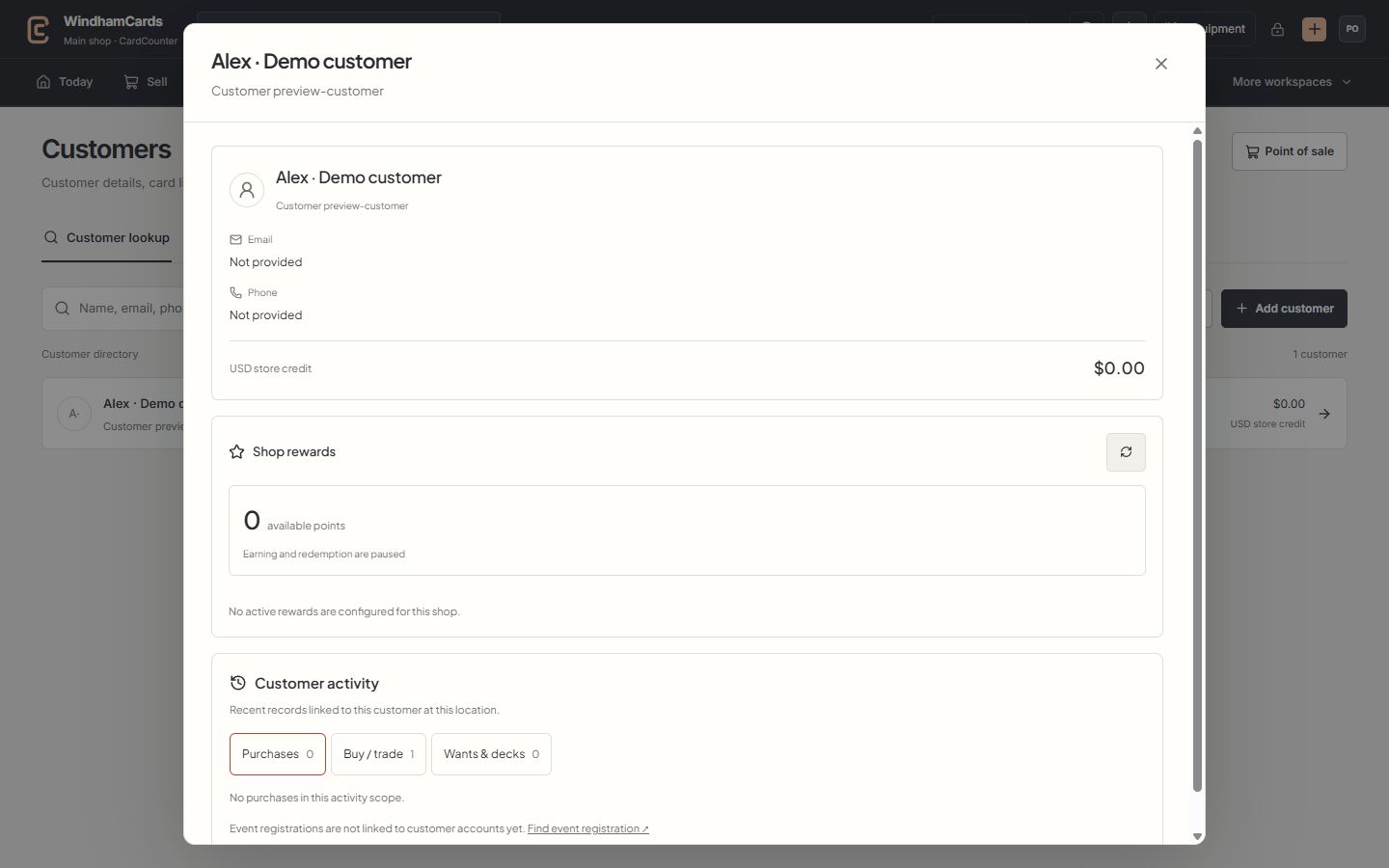
- 1Verified customer
Check the selected name and customer number before attaching a sale.
- 2Store credit
Read the recorded wallet balance and currency; rewards points are separate.
- 3Customer activity
Switch between purchases, buying records, wants and decks at this location.
Keep in mind
Cashback rewards issue store credit; they do not apply a checkout discount or pay cash from the drawer.
Program configuration is separate from the customer’s available credit balance. Benefits depend on the saved shop rules and access.
If something goes wrong
No rewards are available
Check that the program is active, a reward is active, the customer has enough eligible points and the current action is ready.