Find products and read stock
Search exact SKUs, filter stock and inspect physical quantities, reservations, bins and costs.
On this page
Before you begin
Open Inventory → Products & stock.
Owners and managers; stock visibility depends on role. Company feature access and current setup requirements apply.
Step by step
- 1
Choose a saved view
All inventory, Needs price, Low stock, Held, Unassigned bin and Missing cost focus on different stock tasks. Clear a view if an item seems missing.
- 2
Search and filter
Use SKU, name or collector number, then refine the supported facets. Sellable only narrows the results to currently eligible products.
- 3
Read the exact identity
Check language, finish and condition as well as the name and set. Similar printings can be distinct shop SKUs with different quantities and prices.
- 4
Open item history
Review stock movements and direct price history for the exact SKU at this location. Known, mixed and unknown acquisition cost describe the recorded cost coverage.
- 5
Select for labels or export
Select exact SKUs for a label batch or use Export stock for permitted records. Selection does not change stock.
On the screen
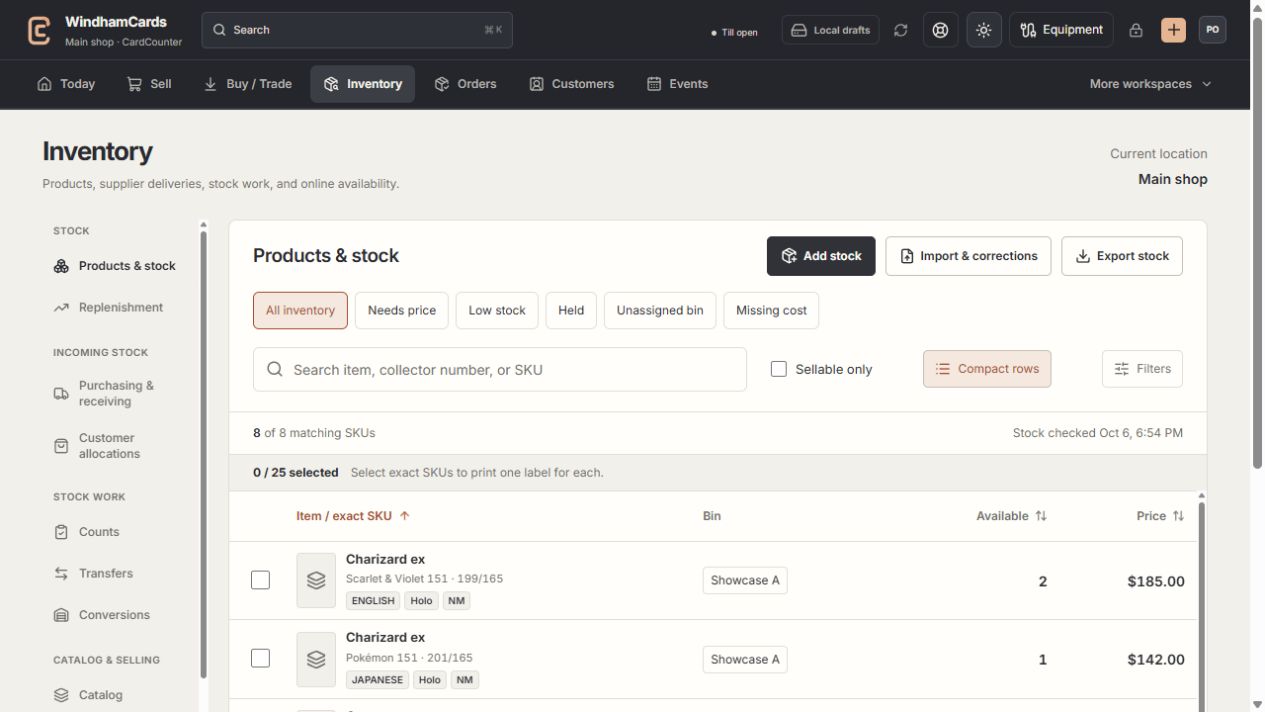
- 1Inventory sections
Move between stock work, pricing, channels, labels and scanning.
- 2Saved views and search
Find missing prices, low stock, holds or an exact shop SKU.
- 3Available stock
Read quantities and physical bins for the exact variant.
Keep in mind
Available = on hand − active holds. Incoming supplier orders are not physical sellable stock until received.
Cashiers may see a narrower view and do not automatically have permission to read acquisition costs.
If something goes wrong
A product disappeared
Clear saved views and filters, confirm the location and check item status. Searching the public catalog and searching owned inventory are different tasks.