Lock, unlock and secure your staff account
Use session locking, account security and sign-out while preserving the distinction between drafts and confirmed work.
On this page
Before you begin
Open Settings → Your account & security or the staff account menu.
Depends on the setting; shop-wide changes require management. Company feature access and current setup requirements apply.
Step by step
- 1
Use your individual account
Keep your staff username and password private. Confirm shop and role after sign-in.
- 2
Lock an unattended register
Use Lock screen or Lock register before leaving the device. Unlock through the secure password prompt when you return.
- 3
Use account controls
Review the supported password and session options in your security page. Follow recovery through the official form instead of sending your password in chat.
- 4
Sign out on shared computers
Finish or safely preserve drafts, reconcile pending results and sign out. Confirm the workspace returns to sign-in.
On the screen
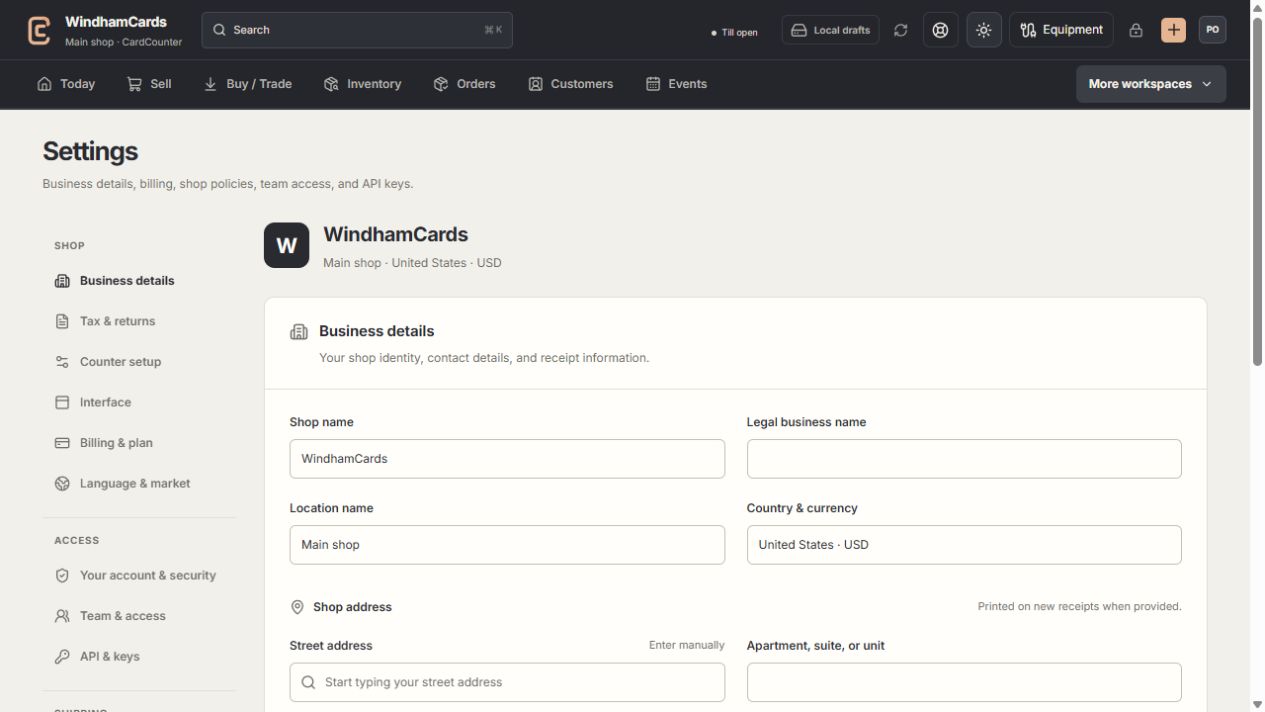
- 1Settings sections
Choose the business, policy, staff, shipping or device setting.
- 2Current values
Check the shop and location before editing a shared setting.
- 3Shop address
Complete the location address and contact fields, then save and read the result.
Keep in mind
A locked session pauses server actions. Unlocking the screen does not by itself approve a company feature or pending provider request.
Other idle staff tabs can affect a shared browser session. Close unnecessary tabs when repeated locks interrupt work.
If something goes wrong
The session repeatedly locks
Unlock the current secure prompt, close unused staff tabs and check the shop’s session behaviour. Contact support if it continues with a single active tab.