Add physical stock
Receive owned copies into an exact SKU and physical bin with a recorded acquisition cost when known.
On this page
Before you begin
Open Inventory → Products & stock → Add stock.
Owners and managers; stock visibility depends on role. Company feature access and current setup requirements apply.
Step by step
- 1
Choose the correct product
Search or prepare the exact SKU. Confirm the item kind and card identity before adding copies.
- 2
Enter the physical quantity
Count the copies received and select the destination bin at the current location. Incoming or customer-owned property should not be entered as owned stock.
- 3
Record acquisition cost
Enter a reliable receipt cost when known. Leave unknown cost explicitly unknown instead of converting it to zero.
- 4
Review and submit
Check the SKU, quantity, bin and receipt information in the available review. Wait for the server result before creating another receipt.
- 5
Check the movement
Find the quantity in Products & stock and read the receipt-linked stock history. The available quantity may be reduced by active reservations.
On the screen
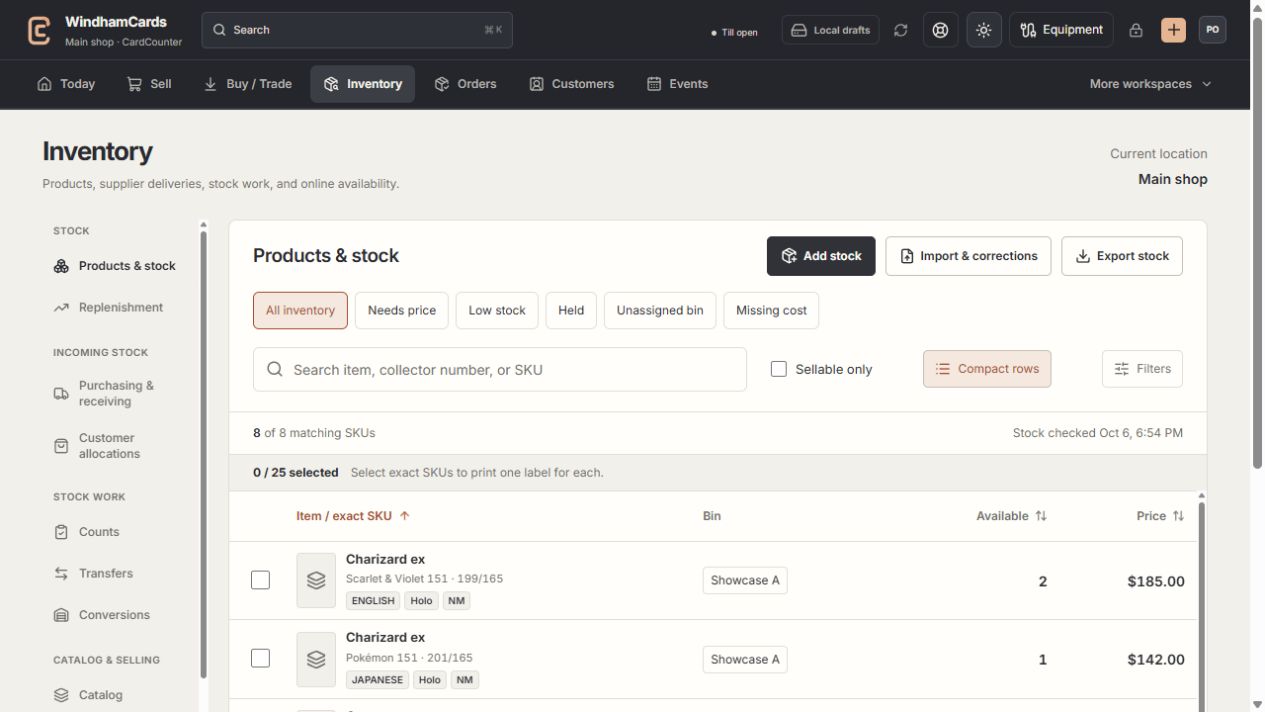
- 1Inventory sections
Move between stock work, pricing, channels, labels and scanning.
- 2Saved views and search
Find missing prices, low stock, holds or an exact shop SKU.
- 3Available stock
Read quantities and physical bins for the exact variant.
Keep in mind
Collection buying and supplier receiving have their own receipt workflows. Use them when they are the source of the stock.
Adding a catalog variant does not add physical stock or acquisition cost.
If something goes wrong
The receipt result is unclear
Refresh stock history and reconcile the existing request. Do not add the same units again just because the success notice was lost.