Design your website
Edit brand, header, hero, content sections, calendar and footer with a private responsive preview.
On this page
Before you begin
Open Website → Design.
Owners and managers with website access. Company feature access and current setup requirements apply.
Step by step
- 1
Choose the saved draft
Select the version you intend to edit. Review unsaved-change notices before switching versions.
- 2
Set brand and page structure
Use supported logo, colour, font, header, hero and section controls. Keep customer navigation names clear and concise.
- 3
Edit section content
Select a section in the editor and review its text, image, layout and link. Reorder supported sections to match the shop’s customer journey.
- 4
Review desktop and mobile
Use the preview device controls and inspect long text, image crops and navigation. The private draft preview is separate from the public website.
- 5
Save the intended draft
Check the save confirmation and review the version before publishing. Unsaved edits are not the version customers will see.
On the screen
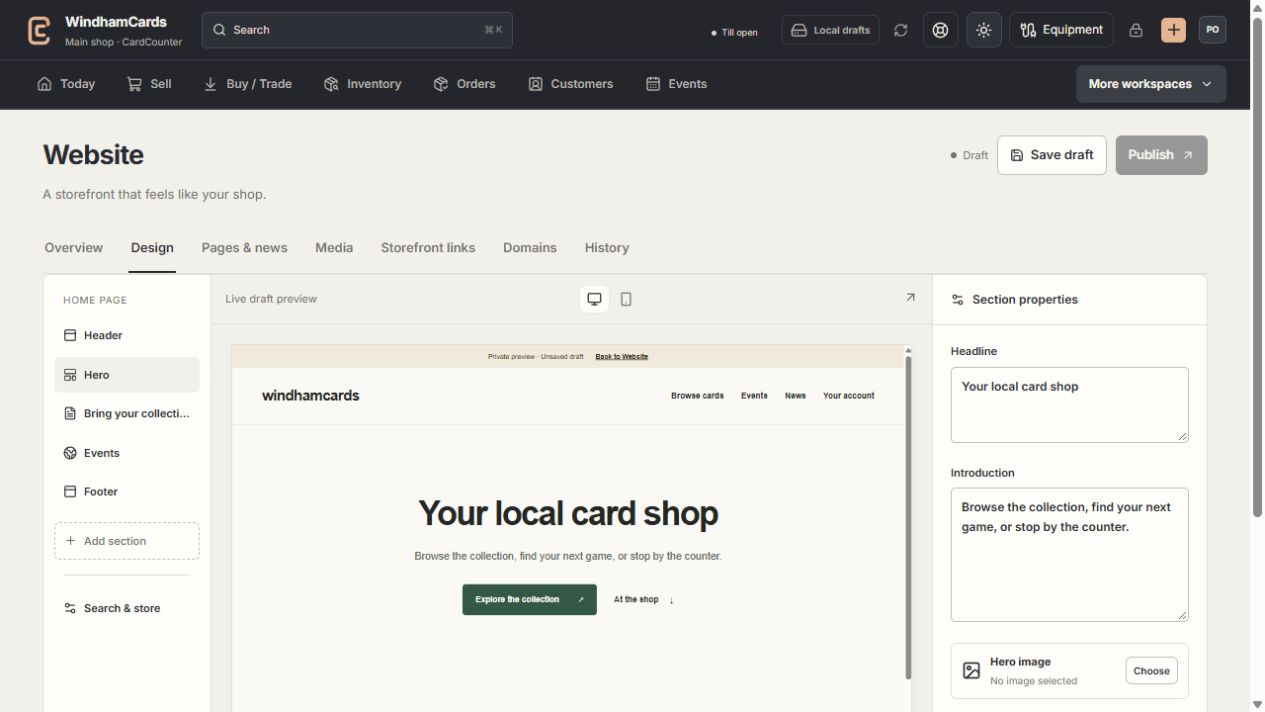
- 1Website tools
Design, pages, media, storefront links, domains and history.
- 2Section properties
Edit the selected section, then save and review the complete draft.
- 3Private preview
Check desktop and mobile before publishing the saved version.
Keep in mind
Use shop-owned or appropriately licensed media and meaningful alternative text.
The preview sends draft content only within the supported same-origin preview flow. Open saved preview to review the version you intend to publish.
If something goes wrong
The preview differs from the public site
The public site uses the published saved version. Check selected draft, unsaved changes and publication history.