Create and manage customer invoices
Prepare a customer invoice, reserve its stock, send a payment link and follow confirmed payment or refund activity.
On this page
Before you begin
Open Orders → Invoices, a customer profile, or Invoice on a prepared customer sale.
Cashiers manage their own permitted invoices; managers handle voids and refunds. Company feature access and current setup requirements apply.
Step by step
- 1
Prepare the customer and lines
Select the customer, exact products and quantities, agreed prices, due date and any permitted discount. A draft does not reserve physical stock.
- 2
Review and issue the invoice
Check the shop tax and payment setup. Issue freezes the financial document and reserves available stock; a prepared POS sale transfers to the invoice rather than creating a second sale.
- 3
Send or download the document
Download the merchant PDF or send the connected Stripe invoice to the recorded customer email. Customers can find their own invoices and payment links in the shop account.
- 4
Follow the confirmed outcome
Use Reconcile after an uncertain response. Stock is deducted once after verified payment; unpaid voids release the reserved stock. Do not treat a browser return as payment evidence.
- 5
Handle a correction safely
Managers can void an unpaid invoice or request a full paid refund with a recorded reason. A pending refund stays pending until confirmed, and confirmed refunds provide a credit note without automatically restocking items.
On the screen
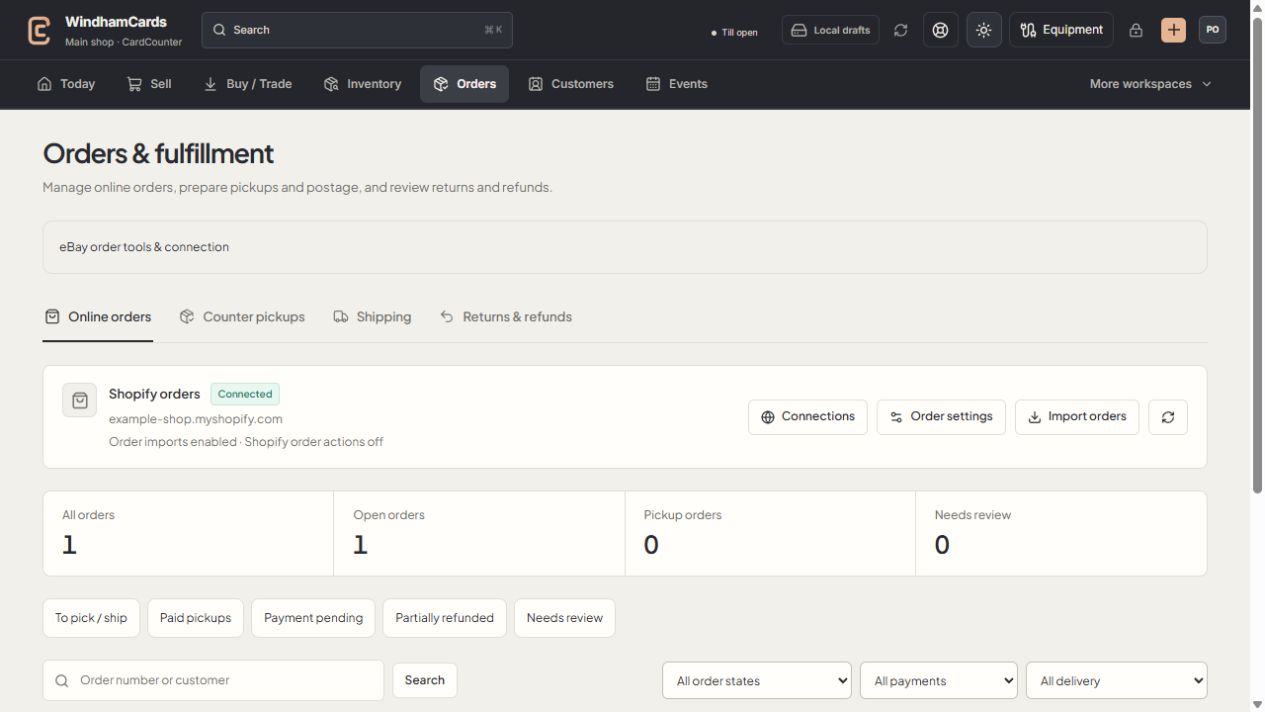
- 1Order workspaces
Online orders, pickups, shipping and returns have distinct records.
- 2Task queues
Separate paid work from pending payments and exceptions.
- 3Filter the records
Use order, payment and delivery filters, then open the intended order.
Keep in mind
Issuing or sending requires the configured invoice service and the shop connected account. Existing obligations still support recovery when new invoice access is disabled.
Do not create a replacement invoice to recover a timed-out issue, email or refund. Retry the existing recorded request.
If something goes wrong
The result is uncertain
Select the original invoice and use Reconcile. Review any recovery-required message before attempting another provider action.